Etherpad Lite is an updated version of Etherpad, an application for collaborative online editing. Each person writing shows up in a different color, there is a chat function, and it has a marvellous "history" function that replays how the document was produced. The document can be exported / downloaded in various formats.
We use Etherpad at the TH Wildau, where it is installed alongside Moodle for online learning.
But Pita Matischka has optimized the code to produce Etherpad Lite, which uses fewer resources and is available online for free. He presents it here:
What a great tool! I've introduced it to ELTABB, the teachers' association I now work for as events coordinator, to collaborate on reviewing events (see here).
Monday, 12 March 2012

Tuesday, 22 November 2011
Fotobabble
Pre-task thinking:
I am currently working my way through student videos, and processing the actual video files. That takes a lot of time. Online audio recordings are so simple and effective by contrast, reducing the speaking task to very essential oral production, and encouraging preparation and repetition that you don't get in a live performance. Since the files are processed online, you don't have any technical hassle with them yourself.
One site that is excellent for such a task is Fotobabble, a website that allows voice recordings to accompany a photo the speaker uploads.
Here is an example.
Task:
In your Fotobabble, give your students the task to respond in kind by following the above instructions themselves, creating their own Fotobabble, and then sending you the link. Caveat: These Fotobabbles can be seen by anyone who has the link. Make sure your students have access to a computer that goes online, with a microphone. There is also a Fotobabble app for iPodTouch/ iPhone.
For more on Fotobabble, see Ian James's blogpost on it from March 2010.
For another excellent app to use for online recording, see my post on Voki - follow this link and try the other apps listed below, too.
Fotobabble http://www.fotobabble.com/ - upload pictures and comments
Voki http://www.voki.com/ - create a talking avatar and record yourself
Voxopop http://www.voxopop.com - join a talk group
Vocaroo http://vocaroo.com/newaccount.php - make a simple, embeddable voice recording
Voicethread http://voicethread.com/ - allow others to add comments (text, audio, video) to a photo
- For assessment, do you prefer recording unprepared or prepared (practiced) statements?
- How would remote recordings change your students' performance?
I am currently working my way through student videos, and processing the actual video files. That takes a lot of time. Online audio recordings are so simple and effective by contrast, reducing the speaking task to very essential oral production, and encouraging preparation and repetition that you don't get in a live performance. Since the files are processed online, you don't have any technical hassle with them yourself.
One site that is excellent for such a task is Fotobabble, a website that allows voice recordings to accompany a photo the speaker uploads.
Here is an example.
Task:
- Create an assignment for your students.
- Create an account on Fotobabble.
- Select and upload a picture (it must be a PNG, GIF, or JPEG) from your computer. Tip: If you want them to comment on something you have in a different format, take a screenshot of the document and save it as a JPEG. - You can also use an online picture, e.g. from the eltpics photostream on Flickr.
- The site will ask you whether it can access the microphone on your computer. Click yes, and make sure the microphone (built-in or headset) is on. Then press the "record" button. Listen, and re-record as often as you like.
- Give your file a title, and save it.
- Select the link to send it to your students, or embed the code in your class blog.
In your Fotobabble, give your students the task to respond in kind by following the above instructions themselves, creating their own Fotobabble, and then sending you the link. Caveat: These Fotobabbles can be seen by anyone who has the link. Make sure your students have access to a computer that goes online, with a microphone. There is also a Fotobabble app for iPodTouch/ iPhone.
For more on Fotobabble, see Ian James's blogpost on it from March 2010.
For another excellent app to use for online recording, see my post on Voki - follow this link and try the other apps listed below, too.
Fotobabble http://www.fotobabble.com/ - upload pictures and comments
Voki http://www.voki.com/ - create a talking avatar and record yourself
Voxopop http://www.voxopop.com - join a talk group
Vocaroo http://vocaroo.com/newaccount.php - make a simple, embeddable voice recording
Voicethread http://voicethread.com/ - allow others to add comments (text, audio, video) to a photo
Thursday, 10 November 2011
Exploring collocations online
Pre-task thinking:
I've made a SCREENCAST VIDEO to walk you through them. (5 minutes)
1. LINGUEE: Linguee http://www.linguee.de/ is an online translation lexicon that shows you how German, French and Spanish is being translated into English online. Trawling the net, it picks up parallel pages, the original and its English translation, and scours them for direct translations. Parallel excerpts are presented side by side, and the translated word or phrase is highlighted, with each excerpt visibly linked to the original website, showing the context. To the left is a lexicon extracted from the database for the words in the search. A nice site to start noticing how collocations are often flavored by L1.
Drawbacks: All too often the translations are sub-par – after all, they are no better than the cross-section of translations we find on websites. However, the translations are highly contextualized and reflect actual useage "on the ground" (English as a Lingua Franca). Also, the site allows users to assess the quality.
2. GOOGLE FIGHT: You and your students can explore collocations by trial and error, guessing two possible or likely collocations and comparing them using Google Fight http://www.googlefight.com/ to assess which one is more frequent.
Drawbacks: The online selection you browse is not curated and edited, nor does it give you the context of each collocation. Likelyhood is across all of the genres present on the web, so the context your students need may not be afforded.
Google itself automatically offers likely collocations as you type in phrases during a search, suggesting ways to complete them.
3. GOOGLE NGRAM: Drawing on all the works published to the internet and dating them by original date of publication, Google Ngram http://books.google.com/ngrams/ creates a timeline of word usage, and is also a good place to compare how collocations have changed over time.
Drawbacks: The selection is decontextualized across all genres. Though you can follow up the sources, this is an item-by-item research project.
4. NETSPEAK: Being developed specifically for learners/users of English, Netspeak http://www.nets peak.org/ is a set of tools built around a search engine that allows 4 modes of search for collocations: one word, several words, alternatives in in the phrase (so: a better synonym), and word order. Collocations are presented showing their relative online frequency compared amongst each other. Press the + sign to the right, and sample sentences are presented. How this site can be used in the writing process is shown in this INTERACTIVE VIDEO.
Drawbacks: The corpus is the uncurated web, with all its genres. (More information.)
5. JUST THE WORD: Based on the British National Corpus, Just the Word http://www.just-the-word.com/ (Sharp Laboratories of Europe 2005-2011) allows you to study word clusters i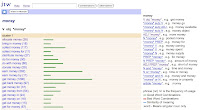 n combination with their grammatical functions (colligations), combining the functions of a thesaurus and a dictionary. Clicking on a given collacation gives you examples of how it is used from the BNC. (More information)
Drawbacks: Rather than a simple comparison of frequency, the system gives you a wealth of potentially distracting information. Still, the site is neatly contained.
6. LEXTUTOR: Originally set up in the 90s, The Compleat Lextutor http://www.lextutor.ca/ from the University of Quebec at Montreal has tutorials (including a lexical grammar test, Corpus Grammar, and the Concord Writer, where you can check collocations as you write); and research apps (including Vocabprofile, to copy complete texts or selected corpora into as .txt files to analyze, with analyzed words then color-coded according to frequency/ corpus). Each app comes with an introduction on its own page.
Task:
Select a collocation issue you want a class of yours to explore. What are your aims? What will the students do with the outcome?
Which of these sites would you use? Defend your choice.
How would you word and run the task?
Your ideas and reports on your experience are most welcome!
PS Anthony Elloway has collected these and similar sites and discussions in a Scoop.it page.
- How do your students currently register and explore collocations?
- What are the advantages and disadvantages of using Google to determine likelihood?
- What sorts of information do your students need to be able to use the word?
I've made a SCREENCAST VIDEO to walk you through them. (5 minutes)
1. LINGUEE: Linguee http://www.linguee.de/ is an online translation lexicon that shows you how German, French and Spanish is being translated into English online. Trawling the net, it picks up parallel pages, the original and its English translation, and scours them for direct translations. Parallel excerpts are presented side by side, and the translated word or phrase is highlighted, with each excerpt visibly linked to the original website, showing the context. To the left is a lexicon extracted from the database for the words in the search. A nice site to start noticing how collocations are often flavored by L1.
Drawbacks: All too often the translations are sub-par – after all, they are no better than the cross-section of translations we find on websites. However, the translations are highly contextualized and reflect actual useage "on the ground" (English as a Lingua Franca). Also, the site allows users to assess the quality.
2. GOOGLE FIGHT: You and your students can explore collocations by trial and error, guessing two possible or likely collocations and comparing them using Google Fight http://www.googlefight.com/ to assess which one is more frequent.
Drawbacks: The online selection you browse is not curated and edited, nor does it give you the context of each collocation. Likelyhood is across all of the genres present on the web, so the context your students need may not be afforded.
Google itself automatically offers likely collocations as you type in phrases during a search, suggesting ways to complete them.
3. GOOGLE NGRAM: Drawing on all the works published to the internet and dating them by original date of publication, Google Ngram http://books.google.com/ngrams/ creates a timeline of word usage, and is also a good place to compare how collocations have changed over time.
Drawbacks: The selection is decontextualized across all genres. Though you can follow up the sources, this is an item-by-item research project.
4. NETSPEAK: Being developed specifically for learners/users of English, Netspeak http://www.nets
 peak.org/ is a set of tools built around a search engine that allows 4 modes of search for collocations: one word, several words, alternatives in in the phrase (so: a better synonym), and word order. Collocations are presented showing their relative online frequency compared amongst each other. Press the + sign to the right, and sample sentences are presented. How this site can be used in the writing process is shown in this INTERACTIVE VIDEO.
Drawbacks: The corpus is the uncurated web, with all its genres. (More information.)
5. JUST THE WORD: Based on the British National Corpus, Just the Word http://www.just-the-word.com/ (Sharp Laboratories of Europe 2005-2011) allows you to study word clusters i
 n combination with their grammatical functions (colligations), combining the functions of a thesaurus and a dictionary. Clicking on a given collacation gives you examples of how it is used from the BNC. (More information)
Drawbacks: Rather than a simple comparison of frequency, the system gives you a wealth of potentially distracting information. Still, the site is neatly contained.
6. LEXTUTOR: Originally set up in the 90s, The Compleat Lextutor http://www.lextutor.ca/ from the University of Quebec at Montreal has tutorials (including a lexical grammar test, Corpus Grammar, and the Concord Writer, where you can check collocations as you write); and research apps (including Vocabprofile, to copy complete texts or selected corpora into as .txt files to analyze, with analyzed words then color-coded according to frequency/ corpus). Each app comes with an introduction on its own page.
Task:
Select a collocation issue you want a class of yours to explore. What are your aims? What will the students do with the outcome?
Which of these sites would you use? Defend your choice.
How would you word and run the task?
Your ideas and reports on your experience are most welcome!
PS Anthony Elloway has collected these and similar sites and discussions in a Scoop.it page.
Monday, 5 September 2011
The state of digital education
Here's a fascinating graphic depicting the state of digital education that shows that elearning saves money compared to instructor-led training. That's a sad and misleading statistic. Just having completed an e-learning course, I think that those two types of instruction are very different, requiring different learner skills and providing different learning opportunities. One of the findings of the past years in education is that one size does not fit all. Any educator worth his or her salt will use digital technology very judiciously to empower learners and allow them to access materials and social learning contacts they wouldn't otherwise have.

Created by Knewton and Column Five Media
Sunday, 21 August 2011
LessonWriter
LessonWriter was recommended to me by Louise Kennedy. It does what its name suggests, letting you copy in a reading text and then creating a sophisticated mix of tasks, from vocabulary and morphology to phonology and grammar, and supplying prompts for questions based on Blooms Taxonomy and the needs you detail. The free version lets you output a document, while the premium one has a wide range of applications in blended learning, including colaborative modalities that allows a team of teachers to work on the lesson, e.g. to address matters of differentiation that may arise in CLIL, mixed L1 or mixed ability classes. The latest video shows how team lesson prep works:
No Administrator Left Behind 2011
No Administrator Left Behind 2011
Monday, 31 January 2011
Vocabee - free vocabulary learning tool
Vocabee is a learning tool built on the Leitner system, the method of repeating new imput in 5 cycles at increasing intervals. Designed for learners of any subject and language, it lets you repeat the content you enter in one of two modes:
Using the "gezielt lernen" mode, study a selected unit to prepare for an exam, storing the content in your short-term memory.
Choose "langfristig lernen" to study using the 5 cycle method, to store the content in your long-term memory.
This tool, launched in January 2011 and currently in beta, was developed by SeitWerk. The makers promise that vocabee will remain free, and they guarantee that what you store there will still be available in 10 or more years. They also promise that they have a lot of ideas up their sleeves to improve on the app.
There is currently a lot of nice free content already available for English and Business English. It was collected by an advanced learner of English (whom I know), who got most of his input from studying at Language World in Starnberg.
Using the "gezielt lernen" mode, study a selected unit to prepare for an exam, storing the content in your short-term memory.
Choose "langfristig lernen" to study using the 5 cycle method, to store the content in your long-term memory.
This tool, launched in January 2011 and currently in beta, was developed by SeitWerk. The makers promise that vocabee will remain free, and they guarantee that what you store there will still be available in 10 or more years. They also promise that they have a lot of ideas up their sleeves to improve on the app.
There is currently a lot of nice free content already available for English and Business English. It was collected by an advanced learner of English (whom I know), who got most of his input from studying at Language World in Starnberg.
Monday, 22 November 2010
BESIG
Things are really popping at BESIG, the IATEFL special interest group for Business English.
Wiki: http://ibow.pbworks.com/w/page/31583454/FrontPage
Twitter: http://twitter.com/#!/iatefl_besig
YouTube: http://www.youtube.com/user/IATEFLBESIG
Ning: http://iatefl-besig.ning.com/
For more links, see the Community Page on the BESIG website: http://www.besig.org/community/index.htm
Wiki: http://ibow.pbworks.com/w/page/31583454/FrontPage
Twitter: http://twitter.com/#!/iatefl_besig
YouTube: http://www.youtube.com/user/IATEFLBESIG
Ning: http://iatefl-besig.ning.com/
For more links, see the Community Page on the BESIG website: http://www.besig.org/community/index.htm
Wednesday, 17 November 2010
Invitation: Come join me in this Bitstrip comic strip
I presented Bitstrips as part of the workshop series last summer, but thought I'd just post, step-by-step, how to make one.
Step 1: Join the Bitstrips site and browse it.
Step 2: Create a character and make it look a little like yourself.
Step 3: Create a comic strip with yourself and some of other characters featured in the "library".
Here's a screencast with Jing that shows you how to handle the controls.
And now ... roll the drums...
Step 4: Engage in social networking through Bitstrips: Add a friend's character to your strip. Or copy a friend's cartoon and add yourself to it, and then let them know!
Short URL: http://bitstrips.com/r/G30WL.
I've set the editing on this strip so that friends can edit it. So come and friend me, copy my strip and put yourself in the last frame :-) Please leave a link.
I've never done this before, so I have no idea whether it will work. Don't be shy :-)
Do any of you already have Bitstrips accounts/ characters? Just let me know.
PS: My favorite review of Bitstrips.
Step 1: Join the Bitstrips site and browse it.
Step 2: Create a character and make it look a little like yourself.
Step 3: Create a comic strip with yourself and some of other characters featured in the "library".
Here's a screencast with Jing that shows you how to handle the controls.
And now ... roll the drums...
Step 4: Engage in social networking through Bitstrips: Add a friend's character to your strip. Or copy a friend's cartoon and add yourself to it, and then let them know!
Short URL: http://bitstrips.com/r/G30WL.
I've set the editing on this strip so that friends can edit it. So come and friend me, copy my strip and put yourself in the last frame :-) Please leave a link.
I've never done this before, so I have no idea whether it will work. Don't be shy :-)
Do any of you already have Bitstrips accounts/ characters? Just let me know.
PS: My favorite review of Bitstrips.
Tuesday, 16 November 2010
Voki
This is a Voki that I typed text into, and which turned my text to (robotic) speech. Create your own at http://www.voki.com/, and see what it does with the text you type in.
Then, below, I've made a second one using a recording of my own voice. You can either record directly into Voki, or create an mp3 using Audacity or (as I did) GarageBand on a Mac.
Caveat: Voki uses Flash, which is not installed on all computers and sometimes causes trouble.

iSpeech Player

The simple text-to-speech app iSpeech Player Code lets you embed a player on a regular blog, but the embed code doesn't work on Ning or Posterous. Instead, you need to download the file as an mp3 and upload it to the site.
The app lets you share a link on any of the sites on the left.
For an excellent overview of text to speech spps, see Özge Karaoglu's blogpost.
Saturday, 17 July 2010
List of links to tools and websites - ELTAS Tech Tools Day
General:
ELTAS Sandbox http://eltas-sandbox.ning.com
internet terms http://www.techterms.com/internet.php
Carl Dowse's list
http://www.wiziq.com/
http://www.dimdim.com/
http://vyew.com/site/
http://www.elluminate.com/
http://www.adobe.com/products/acrobatconnectpro/
Gavin Dudeney’s list
http://www.onestopenglish.com/section.asp?theme=mag&docid=145587
http://www.xtec.cat/cirel/02/webquests/english/2index2.html
http://www.dudeney.com/WebquestsReading.pdf
http://www.mapacourse.com/webquestproject/WebQuestQuiz/webquest_quiz.htm
http://www.educationworld.com/a_curr/curr218.shtml
http://www.theconsultants-e.com/webquests/index.asp
http://webquest.org/search/index.php
http://questgarden.com/search/
http://www.teach-nology.com/web_tools/web_quest/
http://www.aula21.net/Wqfacil/webeng.htm
https://www.teacherweb.com/tweb/twquest.aspx
Anne Hodgson's list
Google image search http://images.google.com/advanced_image_search?hl=en
Tag Galaxy http://taggalaxy.de/
Earth Album http://www.earthalbum.com/
flickr http://www.flickr.com/
TED http://www.ted.com/
YouTube http://www.youtube.com/
Vimeo http://vimeo.com/
Scribd http://www.scribd.com/
Tuxpi http://www.tuxpi.com/
BeFunky http://www.befunky.com/
Wordle http://www.wordle.net/
Tagul http://tagul.com/
Tagxedo http://www.tagxedo.com/
VocabGrabber http://www.visualthesaurus.com/vocabgrabber/
Google Docs Forms http://docs.google.com/
SlideShare http://www.slideshare.net/
280 Slides http://280slides.com/
Prezi http://prezi.com/
Dvolver http://www.dvolver.com/live/home.html
Bitstrips http://www.bitstrips.com/landing
Make beliefs comix http://www.makebeliefscomix.com/
X-tranormal http://www.xtranormal.com/
Animoto http://animoto.com/
Wallwisher http://www.wallwisher.com/
Mike Hogan's list:
Johnny Lee TED 2008: http://www.ted.com/talks/lang/eng/johnny_lee_demos_wii_remote_hacks.html
Johnny Lee’s webpage: http://johnnylee.net/projects/wii/
Smoothboard FAQ: http://www.smoothboard.net/faq
Smoothboard Wiki: http://www.boonjin.com/smoothboard/index.php?title=Main_Page
Infrared pen: http://shop.irpensonline.com/
Smoothboard: http://www.smoothboard.net/
Dabbleboard tour: http://www.dabbleboard.com/tour
Lesson plans using videos in the ELT classroom: http://www.teflclips.com
Free tools and resources for use with an interactive whiteboard:
http://www.triptico.co.uk, http://www.triptico.co.uk/resources/word_magnets/WordMagnets.html
Templates for teacher or student generated review games: http://its.leesummit.k12.mo.us/gameresources.htm
Making guesses/assumptions with students http://classtools.net/education-games-php/lights_out/
Heike Philp's list:
Virtual Round Table Conference http://virtual-round-table.ning.com/
CErtified Live Online Teachers, www.lancelot.at
Learning live Online, www.avalonlearning.eu
Petra Pointner
www.twitter.com
Byron Russell
www.english360.com
Karenne Sylvester's list:
Prezi (presentation)*
http://prezi.com/b4fdzxgbmx6p/blogging-chatting-discussions-online/
Prezi (student version)
http://prezi.com/929xhfxygtqe/why-do-we-write-student-exercise/
Animoto video http://animoto.com/play/h5Xz2Tmw0NRcIoq7veirhA?from=nc&utm_nooverride=1
Google Docs http://docs.google.com/
Delicious http://delicious.com/KalinagoEnglish
Shelly Terrell's list
Presentation Wiki with all the tools, http://technology4kids.pbworks.com/ELTAS
Leave an audio response on the Voxopop thread, http://www.voxopop.com/group/6b4aaf44-4a46-437b-9281-d692510f193d
Register on Voxopop, http://www.voxopop.com
Register on Vocaroo, http://vocaroo.com/newaccount.php
Voicethread http://voicethread.com/
Woki http://www.voki.com/
Glogster http://www.glogster.com/
Audacity http://audacity.sourceforge.net/
Apple iLife Garageband http://www.apple.com/ilife/garageband/
Fotobabble http://www.fotobabble.com/
Andi White
A great website with videos that will walk you through web tools step by step:
teachertrainingvideos.com
Xtra: Barbara Sakamoto's Special PLN (Personal Learning Network) Quiz
What you can learn from my PLN (Teaching Village) http://bit.ly/a9cpYj
internet terms http://www.techterms.com/internet.php
Carl Dowse's list
http://www.wiziq.com/
http://www.dimdim.com/
http://vyew.com/site/
http://www.elluminate.com/
http://www.adobe.com/products/acrobatconnectpro/
Gavin Dudeney’s list
http://www.onestopenglish.com/section.asp?theme=mag&docid=145587
http://www.xtec.cat/cirel/02/webquests/english/2index2.html
http://www.dudeney.com/WebquestsReading.pdf
http://www.mapacourse.com/webquestproject/WebQuestQuiz/webquest_quiz.htm
http://www.educationworld.com/a_curr/curr218.shtml
http://www.theconsultants-e.com/webquests/index.asp
http://webquest.org/search/index.php
http://questgarden.com/search/
http://www.teach-nology.com/web_tools/web_quest/
http://www.aula21.net/Wqfacil/webeng.htm
https://www.teacherweb.com/tweb/twquest.aspx
Anne Hodgson's list
Google image search http://images.google.com/advanced_image_search?hl=en
Tag Galaxy http://taggalaxy.de/
Earth Album http://www.earthalbum.com/
flickr http://www.flickr.com/
TED http://www.ted.com/
YouTube http://www.youtube.com/
Vimeo http://vimeo.com/
Scribd http://www.scribd.com/
Tuxpi http://www.tuxpi.com/
BeFunky http://www.befunky.com/
Wordle http://www.wordle.net/
Tagul http://tagul.com/
Tagxedo http://www.tagxedo.com/
VocabGrabber http://www.visualthesaurus.com/vocabgrabber/
Google Docs Forms http://docs.google.com/
SlideShare http://www.slideshare.net/
280 Slides http://280slides.com/
Prezi http://prezi.com/
Dvolver http://www.dvolver.com/live/home.html
Bitstrips http://www.bitstrips.com/landing
Make beliefs comix http://www.makebeliefscomix.com/
X-tranormal http://www.xtranormal.com/
Animoto http://animoto.com/
Wallwisher http://www.wallwisher.com/
Mike Hogan's list:
Johnny Lee TED 2008: http://www.ted.com/talks/lang/eng/johnny_lee_demos_wii_remote_hacks.html
Johnny Lee’s webpage: http://johnnylee.net/projects/wii/
Smoothboard FAQ: http://www.smoothboard.net/faq
Smoothboard Wiki: http://www.boonjin.com/smoothboard/index.php?title=Main_Page
Infrared pen: http://shop.irpensonline.com/
Smoothboard: http://www.smoothboard.net/
Dabbleboard tour: http://www.dabbleboard.com/tour
Lesson plans using videos in the ELT classroom: http://www.teflclips.com
Free tools and resources for use with an interactive whiteboard:
http://www.triptico.co.uk, http://www.triptico.co.uk/resources/word_magnets/WordMagnets.html
Templates for teacher or student generated review games: http://its.leesummit.k12.mo.us/gameresources.htm
Making guesses/assumptions with students http://classtools.net/education-games-php/lights_out/
Heike Philp's list:
Virtual Round Table Conference http://virtual-round-table.ning.com/
CErtified Live Online Teachers, www.lancelot.at
Learning live Online, www.avalonlearning.eu
Petra Pointner
www.twitter.com
Byron Russell
www.english360.com
Karenne Sylvester's list:
Prezi (presentation)*
http://prezi.com/b4fdzxgbmx6p/blogging-chatting-discussions-online/
Prezi (student version)
http://prezi.com/929xhfxygtqe/why-do-we-write-student-exercise/
Animoto video http://animoto.com/play/h5Xz2Tmw0NRcIoq7veirhA?from=nc&utm_nooverride=1
Google Docs http://docs.google.com/
Delicious http://delicious.com/KalinagoEnglish
Shelly Terrell's list
Presentation Wiki with all the tools, http://technology4kids.pbworks.com/ELTAS
Leave an audio response on the Voxopop thread, http://www.voxopop.com/group/6b4aaf44-4a46-437b-9281-d692510f193d
Register on Voxopop, http://www.voxopop.com
Register on Vocaroo, http://vocaroo.com/newaccount.php
Voicethread http://voicethread.com/
Woki http://www.voki.com/
Glogster http://www.glogster.com/
Audacity http://audacity.sourceforge.net/
Apple iLife Garageband http://www.apple.com/ilife/garageband/
Fotobabble http://www.fotobabble.com/
Andi White
A great website with videos that will walk you through web tools step by step:
teachertrainingvideos.com
Xtra: Barbara Sakamoto's Special PLN (Personal Learning Network) Quiz
Friday, 16 July 2010
What's your favorite learning environment?
Where's your collaborative learning environment these days? One thing is for sure: It's likely not all in one place! One of my one-to-one students has a Ning and a Posterous blog. My Moodle and home blog are my mainstay, but I'm not teaching anyone there are the moment. A test I wrote for another Moodle course is up and running very well. Then there's a company Ning. I'm learning myself on Twitter, and using all sorts of sites like GoogleReader and Delicious to organize my own learning.
Of all the all-in-one packages, I think Moodle is still the best solution for school and college courses. It provides students activities for higher order learning, like forum, database, glossary and wiki. It's great for blended learning. Much of it is presenting and collecting/ organizing student work (if you need that it's the only choice!), but you can also assign more productive roles to your students.
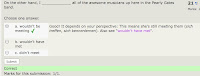
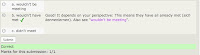
I very much like the integrated tests for self-assessment. This is a type of learning that may be underestimated. I've been building tests for Spotlight now for two and a half years, so I know a little more about tests than back when I was using Moodle only for collaborative learning. Students like doing interactive quizzes as long as they're short and sweet to keep on track. Moodle includes the most extensive feedback options I have seen anywhere. This is what feedback in a Moodle test looks like (just click these to view them large):
I'm a fan of the test-teach-test approach to learning some basics, and Moodle has all the tools you need for that. Ning and the various tools you could embed in a Ning don't come close. But creating good tests in Moodle takes much longer than you think.
Still, I'm currently going with Ning for company courses, and be it simply to share experience with more trainers, but I'm wondering whether I should switch back. Or look elsewhere.
What are you opting for these days, and why?
Of all the all-in-one packages, I think Moodle is still the best solution for school and college courses. It provides students activities for higher order learning, like forum, database, glossary and wiki. It's great for blended learning. Much of it is presenting and collecting/ organizing student work (if you need that it's the only choice!), but you can also assign more productive roles to your students.
I very much like the integrated tests for self-assessment. This is a type of learning that may be underestimated. I've been building tests for Spotlight now for two and a half years, so I know a little more about tests than back when I was using Moodle only for collaborative learning. Students like doing interactive quizzes as long as they're short and sweet to keep on track. Moodle includes the most extensive feedback options I have seen anywhere. This is what feedback in a Moodle test looks like (just click these to view them large):


I'm a fan of the test-teach-test approach to learning some basics, and Moodle has all the tools you need for that. Ning and the various tools you could embed in a Ning don't come close. But creating good tests in Moodle takes much longer than you think.
Still, I'm currently going with Ning for company courses, and be it simply to share experience with more trainers, but I'm wondering whether I should switch back. Or look elsewhere.
What are you opting for these days, and why?
Take a snapshot of your screen
Creating online snapshots is getting more important as we work online and want to save images of the processes to document or explain things. So: What do you use to make screenshots?
With Microsoft Windows, you press the Print Screen button.
I use Mac, and my favorite tool is the incredibly versatile Skitch that lets you annotate and resize pictures (tutorial). The most amazing bit: You simply drag and drop an image into an email. That has come in handy. I've also used it to prepare several of the images on this blog.
I often use it to take snapshots of Wordle and Tagxedo wordclouds. They're great to project on the wall for

In Tagxedo, a "shapely" app, every word in the cloud is a hyperlink. The sophisticated software driving all of that means it doesn't work on some sites, like the Drupal site Spotlight runs on. If you don't really need all those hyperlinks but like the pretty image, you can take a screenshot and just link the image you have captured back to the original page (add the image, then in the rich text editor highlight the picture, click on the link symbol, copy in the original URL):

With Microsoft Windows, you press the Print Screen button.
I use Mac, and my favorite tool is the incredibly versatile Skitch that lets you annotate and resize pictures (tutorial). The most amazing bit: You simply drag and drop an image into an email. That has come in handy. I've also used it to prepare several of the images on this blog.
I often use it to take snapshots of Wordle and Tagxedo wordclouds. They're great to project on the wall for
- predicting
- remembering
- highlighting and developing
- spinning off new discussions
- spelling
- leading into vocabulary work (collocations, Visual Thessaurus)

In Tagxedo, a "shapely" app, every word in the cloud is a hyperlink. The sophisticated software driving all of that means it doesn't work on some sites, like the Drupal site Spotlight runs on. If you don't really need all those hyperlinks but like the pretty image, you can take a screenshot and just link the image you have captured back to the original page (add the image, then in the rich text editor highlight the picture, click on the link symbol, copy in the original URL):
Handouts ELTAS Tech Tools Day 2010
ELTAS Tech Tools 2010 Level 1
ELTAS Tech Tools 2010 Level 2
My two handouts are embedded here using Scribd. The first part of the tutorial below shows you how it works:
ELTAS Tech Tools 2010 Level 2
My two handouts are embedded here using Scribd. The first part of the tutorial below shows you how it works:
Games to play in your forum or blog
This is another ELTAS Tech Tools Day task.
Pre-task thinking:
Text-based games
Any kind of collaborative or prompted writing can be a game as soon as you set rules limiting what students can do, getting their creative juices flowing. They are developing something together, yet watching the others, which all by itself introduced a competitive element. You can set time constraints to raise adrenaline levels and create parallel tasks to increase the sense of competition.
You might want to link to Oxford collocations in your Ning or blog and have students refer to them when playing text-based games to keep the language juices flowing.
Picture-based games
Post a puzzling picture as a discussion and have everyone guess what it is. I really like the picture puzzles on Pixelio.de. Register and then just type in "Bildrätsel" into the search box there for free downloadable pictures. The photographers generally include a picture "solution" that you can share when comments start to run dry. Pairs include these:




Interactive games for adults: Fun, but not collaborative!
You can create your own games, and the range is virtually endless. But where is the line between a game and an exercise? Many ready games are Flash-based, which has to be installed on the computers you are using. You'll find interactive language games at Spotlight, designed by Macmillan.
Hat tip to Markus Brendel of Der Englisch Blog: Markus embeds in his blog is Sheepman, a German-English idiom translation game that has sheep biting the dust. The activities on Nik (Peachey)'s Daily English Activities feel like games. It's a big world of games out there (let's talk about it another day).
BUT all of these games can also be played alone. You can beam them up on a whiteboard, or use a projector and have someone type what everyone says.
But in a forum, you're playing together. Collaborating. Even if you're not in the same room.
Task:
Pre-task thinking:
- What kinds of games do you play with adult classes?
- Which games make them actually apply their language skills?
Text-based games
Any kind of collaborative or prompted writing can be a game as soon as you set rules limiting what students can do, getting their creative juices flowing. They are developing something together, yet watching the others, which all by itself introduced a competitive element. You can set time constraints to raise adrenaline levels and create parallel tasks to increase the sense of competition.
- Write a story simply by extending a sentence by a word. Rule: you're not allowed to delete what someone else has written! Here's a sample: Expanding Alice. Each person updating the story copies and pastes the last update into the comments and adds words.
- Change a story by changing individual words (sample: Altering Alice).
You might want to link to Oxford collocations in your Ning or blog and have students refer to them when playing text-based games to keep the language juices flowing.
Picture-based games
Post a puzzling picture as a discussion and have everyone guess what it is. I really like the picture puzzles on Pixelio.de. Register and then just type in "Bildrätsel" into the search box there for free downloadable pictures. The photographers generally include a picture "solution" that you can share when comments start to run dry. Pairs include these:


Interactive games for adults: Fun, but not collaborative!
You can create your own games, and the range is virtually endless. But where is the line between a game and an exercise? Many ready games are Flash-based, which has to be installed on the computers you are using. You'll find interactive language games at Spotlight, designed by Macmillan.
Hat tip to Markus Brendel of Der Englisch Blog: Markus embeds in his blog is Sheepman, a German-English idiom translation game that has sheep biting the dust. The activities on Nik (Peachey)'s Daily English Activities feel like games. It's a big world of games out there (let's talk about it another day).
BUT all of these games can also be played alone. You can beam them up on a whiteboard, or use a projector and have someone type what everyone says.
But in a forum, you're playing together. Collaborating. Even if you're not in the same room.
Task:
- Think of a forum game to play with a class of yours.
- Write the introductory text.
- Post as a Ning discussion.
- Invite others to join.
Thursday, 15 July 2010
Comix starring you: Bitstrips
This is another ELTAS Tech Tools Day task.
Pre-task thinking:
Watch:
Bitstrips is a social networking site where you can connect with other Bitstrip makers. The site lets you
This is an old one:
Learning the ropes is clearly easier for children. But this is fail-safe. Make your avatar, make a solo-strip, then try including other characters in a new strip, and invite a friend to join. Even if you don't get all of it, it'll work. Go! With a class, just making the avatar will give you great language. The magic is in the process of creation - not necessarily in the comix produced! Caution: It's a time killer and quite addictive. Here's an idea of what the program does:
Very chatty: ubergeek Chris Pirillio says he's been waiting all his life for this type of software and explains how to invite a friend, creating his or her character...
Pre-task thinking:
- We live in the age of me (or "mi", to quote Beaker.) Agree or disagree?
- Does self-portrayal or self-promotion play a role in your teaching/ your students' learning styles?
- Brainstorm: What sort of stories could star your students?
Watch:
Bitstrips is a social networking site where you can connect with other Bitstrip makers. The site lets you
- create characters of all kinds.
- create a character that looks like you – your avatar.
- give your avatar a role in a comic
- find and add characters others have made to create dialogues
- create strips of various lengths
This is an old one:
Learning the ropes is clearly easier for children. But this is fail-safe. Make your avatar, make a solo-strip, then try including other characters in a new strip, and invite a friend to join. Even if you don't get all of it, it'll work. Go! With a class, just making the avatar will give you great language. The magic is in the process of creation - not necessarily in the comix produced! Caution: It's a time killer and quite addictive. Here's an idea of what the program does:
Very chatty: ubergeek Chris Pirillio says he's been waiting all his life for this type of software and explains how to invite a friend, creating his or her character...
Make your own comix with Make Beliefs Comix
This is another ELTAS Tech Tools Day task.
Pre-task thinking:
Make Beliefs Comix
Make Beliefs Comix is an easy tool providing cute characters for "children of all ages".
The interface is self-expanatory.
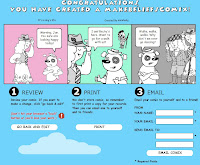
You can create 2-4 frames and add characters, expressions, change position, add speech and thought bubbles... and when you're done you can print out (or print as a pdf) and even send as an email. Careful: Never go back using the back arrow, as you lose all of your work. I did!
Task:
Make a comic with Make Beliefs Comix + email it to yourself and your friends.
Pre-task thinking:
- What kinds of exchange fit into a 3-4 frame comix format?
- Would you prefer to have students make comix alone, in pairs or as a group?
Make Beliefs Comix
Make Beliefs Comix is an easy tool providing cute characters for "children of all ages".
The interface is self-expanatory.
You can create 2-4 frames and add characters, expressions, change position, add speech and thought bubbles... and when you're done you can print out (or print as a pdf) and even send as an email. Careful: Never go back using the back arrow, as you lose all of your work. I did!

Task:
Make a comic with Make Beliefs Comix + email it to yourself and your friends.
Storytelling: Tuxpi to edit a photo
This is another ELTAS Tech Tools Day task.
Pre-task thinking:
Take that wonderful Blackpool staple, Yvette, the Headless Woman.
Task 1:
Give three pictures to three different parties and ask them, "Say, who is Yvette?"


Image protected. Find other pictures to use. Copyright of the National Fairground Archive, University of Sheffield 2007.

Task 2:
Pre-task thinking:
- Every photo tells a story, they say. But doesn't it in fact usually tell several? It's all a matter of perspective.
- So give your students two or more separate storytelling prompts made from one photo, using simple photo editing techniques.
Take that wonderful Blackpool staple, Yvette, the Headless Woman.
Task 1:
Give three pictures to three different parties and ask them, "Say, who is Yvette?"


Image protected. Find other pictures to use. Copyright of the National Fairground Archive, University of Sheffield 2007.

Task 2:
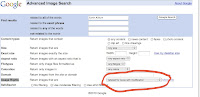
- Find a picture using Google Advanced Image Search (select "labeled for reuse with modification")
- Edit it in Tuxpi. Download it.
- Open a new discussion in Ning.
- Upload/embed the picture. Formulate a task.
- Respond to answers.
- Respond to someone else's picture task.

Storytelling: A slideshow with Animoto
This is another ELTAS Tech Tools Day task.
Pre-task thinking:
Positive: This tool is free and easy to use, so good for students, especially for those who keep photos online.
Negative: You can't change the sequence of the pictures, or map the audio exactly to the individual frames.
The following Animoto slideshow was made using
Share pictures as a slideshow and either
Pre-task thinking:
- How do you use photographs for storytelling?
Positive: This tool is free and easy to use, so good for students, especially for those who keep photos online.
Negative: You can't change the sequence of the pictures, or map the audio exactly to the individual frames.
The following Animoto slideshow was made using
- photos I uploaded from my phone to Flickr and made into an album
- an mp3 audio file I made recording myself and using Garageband (part of Apple) including a jingle. You can use Audacity (great freeware) instead to create mp3s.
Create your own video slideshow at animoto.com
Task:Share pictures as a slideshow and either
- add a short audio file in which you explain them
- write a text about them to post along with the slideshow
- Select or create an album on Flickr with pictures from an event (up to 12 pictures)
OR find up to 12 pictures online through Google Images. (Use "advanced search" to assure that the Usage Rights state that they are "labeled for reuse".) - Create a 30 second mp3 using Audacity
OR write a paragraph to go with the pictures. - Go to http://animoto.com
- For "add pictures", connect to your Flickr album and select it OR select pictures online individually OR upload them from your computer.
- Add a title and description to your first slide.
- For "music", either upload your mp3 recording OR add a piece of music Animoto offers
- Let Animoto complete the mashup.
- Embed on your blog or Ning (along with any text.)
Wallwisher
This is another ELTAS Tech Tools Day task.
Pre-task thinking:
Task 1:
First, use this Wallwisher wall to post something you'd really love to try out. If you've seen an example you want to share, link to it in the bottom part of your sticky. This is our wish list ;). No need to register, just add your name so it's not anonymous. (If you're registered your name shows automatically)
The link: TechTools4AuntieWeb Wallwisher wall
Task 2:
Make your own wall.
What will it be about?
In her tutorial below, Ana Maria Menezes (Twitter, Life Feast blog) teaches her students not only how to make a wall, but also how to publish it in a blog. A great way to get students creating tasks for their fellow students! For student blogs she recommends the ultra-simple http://www.posterous.com, and so do I.
Pre-task thinking:
- What are your first steps online with a class?
- How can you engage a group to use the web to communicate with each other?
- How can you make what people in your group say visible at a glance?
- How can you collect and save ideas/links in one place when your group is connected by "nothing" but the Internet?
Task 1:
First, use this Wallwisher wall to post something you'd really love to try out. If you've seen an example you want to share, link to it in the bottom part of your sticky. This is our wish list ;). No need to register, just add your name so it's not anonymous. (If you're registered your name shows automatically)
The link: TechTools4AuntieWeb Wallwisher wall
Task 2:
Make your own wall.
What will it be about?
- Collecting tips on places to go to keep cool?
- Best songs out this year?
- Favorite cities?
- Go to http://www.wallwisher.com
- Register (name, email)
- Create a wall by selecting a title (at least 6 characters) creating a URL for your wall. Tip: Since the title will be your URL, it has to be unique. Many popular titles are already taken. Use numbers (like 2 and 4) in your title
- Leave the default setting: everyone can post + view.
- Select an image and background.
- Click "done" to submit.
- Post a sticky with text and optional link. You can edit you sticky.
- Link to this page (URL) in your blog or Ning and invite stickies
- OR, under "Do more", click "embed" an image of the wall and copy this code to your blog or Ning.
In her tutorial below, Ana Maria Menezes (Twitter, Life Feast blog) teaches her students not only how to make a wall, but also how to publish it in a blog. A great way to get students creating tasks for their fellow students! For student blogs she recommends the ultra-simple http://www.posterous.com, and so do I.
Subscribe to:
Posts (Atom)