Bab.la has just published a top 100 blog list, and the top 10 blogs to read if you are teaching a language are:
Overall Top 100 | Language Learning | Language Technology | Language Professionals
1. Listen to English
Podcast and blog for learners of English. Topics include current events, items of interest and cultural quirks.
2. Inglês Online
Tips, experiences and websites for people learning or teaching English.
3. Grammar Girl
Blog with quick and dirty tips for better writing.
4. Angela Maiers
Putting Learners and Learning First
5. todo ele 2.0
Spanish as a second language, resources, lessons
6. Better at English
Real English for real people
7. English Spark
Putting a spark in the English learning community with tools to learn, share, collaborate and connect.
8. Confessions of a Comunity College Dean
Education and teaching blog
9. Kalinago English
Teaching EFL Teachers How To Teach Speaking
10. Tecla SAP
Blog created to help English learners with their studies focused on common difficulties that Portuguese speakers have when learning English.
Congratulations to one and all. I like competitions like this, because it's lovely to see bloggers you follow get the appreciation they deserve, and exciting to discover new ones. Spanish, anyone?
See Lexophiles, the blog project run by Andreas Schroeter, Thomas Schroeter, and Patrick Uecker, the managing directors of Bab.la, the language learning networking site based in Hamburg that ran the competition.
Friday, 31 July 2009

Wednesday, 29 July 2009
A networking natural: Karenne Sylvester
I first heard of Karenne Sylvester through my colleagues on the Board at MELTA, coming back from an InterELTA meeting. "She's really active and savvy", they said, "and she could write a blog for all of us ELTAs." Unfortunately, setting up anything like that is a major challenge in many ways, and we really wanted to do something downhome and local first. But at least the discussion introduced us properly to her blog.
And what a blog it is. Frankly, she is already doing far more than providing a blog to an institution. She is an institution.
Based in the Stuttgart area, she divides her attentions between teaching on the one hand, and mentoring and training other trainers on the other, which she has built into being a one-woman networking hub. She's also the originator of the 27 hour day, as you can tell from her two blog setup, her network of EFL bloggers on the social networking site Ning, her activities across the blogosphere and world of Twitter, and her covert allusions to deadlines and projects.
She's on top of things and has everyone's attention thanks to her very punchy sense of humor, and what she calls her "rants". A refreshing brand of tough love. No tired old stuff here.
Friends, you can do no better than to join her network.
On Twitter: http://twitter.com/kalinagoenglish
For teachers: http://kalinago.blogspot.com
Her other activities and products: "About"
Her social network for ELT bloggers BELTfree explained here.
And what a blog it is. Frankly, she is already doing far more than providing a blog to an institution. She is an institution.
Based in the Stuttgart area, she divides her attentions between teaching on the one hand, and mentoring and training other trainers on the other, which she has built into being a one-woman networking hub. She's also the originator of the 27 hour day, as you can tell from her two blog setup, her network of EFL bloggers on the social networking site Ning, her activities across the blogosphere and world of Twitter, and her covert allusions to deadlines and projects.
She's on top of things and has everyone's attention thanks to her very punchy sense of humor, and what she calls her "rants". A refreshing brand of tough love. No tired old stuff here.
Friends, you can do no better than to join her network.
On Twitter: http://twitter.com/kalinagoenglish
For teachers: http://kalinago.blogspot.com
Her other activities and products: "About"
Her social network for ELT bloggers BELTfree explained here.
Tuesday, 28 July 2009
Applications for spaced repetition flashcards
There seem to be (at least) three major good online flashcard providers on the market for EFL. They all work using the system of building your memory by review based on spaced repetition.
Phase 6: http://www.phase6.co.za/opencms/Homepage
This service has been around since 2002, and it's probably the most professional. It is basically an empty tool that lets you create your own content. Available for Mac OSX and Windows, but the Mac version is in Beta. The blurb says content includes English for ESL, Spanish, other languages and academic vocabulary and terminology (science, law, medicine, economics)
Their blog says that they have introduced "The “i-tunes of education” concept:
This service is free and Open Source. Very friendly video introduction. Available for Windows and Mac OSX, for jailbroken iPhones and the iPod Touch. This is primarily for writing up your own vocab, but it seems to be geared to content sharing communities, so for example teachers can push contents to students.
I've seen this recommended on Das Englisch Forum.
AZ6-1: http://www.az6-1.de
This service was developed by a father-daughter team, and it now seems to be used with PONS content. Besides serving Mac, Windows and Linus, it has a mobile app, but only for phones running Java MIDP 2.0. The focus seems to be on ready content that you can buy in small topical modules, geared to content at German schools. You can add your own content, as with the others, too. A USP seems to be the colorful skins you can put on your learning environment, which appeals to the kids.
Do any of you have experience using any of these, or other similar flashcard applications? Thanks for sharing tips!
Phase 6: http://www.phase6.co.za/opencms/Homepage
This service has been around since 2002, and it's probably the most professional. It is basically an empty tool that lets you create your own content. Available for Mac OSX and Windows, but the Mac version is in Beta. The blurb says content includes English for ESL, Spanish, other languages and academic vocabulary and terminology (science, law, medicine, economics)
Their blog says that they have introduced "The “i-tunes of education” concept:
"As of June 2009, we’ve got the following (publishers) on board: Diesterweg Verlag, Klett Verlag, Cornelsen Verlag, Langenscheid Verlag, Springer Verlag, C.C.Buchner Verlag, Mentor Verlag, and Martin’s Little Helper."Anki: http://ichi2.net/anki
This service is free and Open Source. Very friendly video introduction. Available for Windows and Mac OSX, for jailbroken iPhones and the iPod Touch. This is primarily for writing up your own vocab, but it seems to be geared to content sharing communities, so for example teachers can push contents to students.
I've seen this recommended on Das Englisch Forum.
AZ6-1: http://www.az6-1.de
This service was developed by a father-daughter team, and it now seems to be used with PONS content. Besides serving Mac, Windows and Linus, it has a mobile app, but only for phones running Java MIDP 2.0. The focus seems to be on ready content that you can buy in small topical modules, geared to content at German schools. You can add your own content, as with the others, too. A USP seems to be the colorful skins you can put on your learning environment, which appeals to the kids.
Do any of you have experience using any of these, or other similar flashcard applications? Thanks for sharing tips!
Saturday, 25 July 2009
Personal learning environment (PLE)
A buzzword is making the rounds in education, namely the Personal Learning Environment (PLE). Basically it describes the digital tools you use to gather information, to connect with others and to produce content of your own as you engage in learning. It is sometimes mentioned in connection with a Personal Learning Network (PLN), which describes the people you interact with in learning and who enable you to make progress. Chris Duke (an educational technologist and instructional designer with over 15 years of professional experience in education) has developed a model as part of a survey which I think provides key insight into how technologies are being used today. Have a look at his diagram:
Chart by Chris Duke, www.cmduke.com
1. As you can see, Chris Duke uses Microsoft Office products, Blogger et al. to generate content.
2. He manages his information by surfing using Firefox and Google (both of which provide tools to help you categorize that information). I'm not familiar with the ATM or the Z or the blue logos - do you recognize any of them?
3. He connects with others mostly through Facebook, as well as through GoogleMail and Second Life (the eye). And he is an instructor in Second Life, so he has placed the logo close to the field for generating content.
Now, at the hub of all of this are his GoogleReader RSS feeds - the feeds of things he publishes, the feeds of blogs his contacts publish and the information he collects and organizes. And he also uses Twitter, which works very much the same way. These three functions seem to merge into one at the center.
My PLE chart looks quite similar:
1. For content generation, I'd add the audiovisual iMac tools I use, as well as WordPress and Drupal (the content management system we use at Spotlight). I create content in Moodle, too, (e.g. tests, discussion points for the forums, assignments) but Moodle is more about organizing and managing information and contacts in a specific course. (What I sorely lack are slidemaking and photoediting skills.)
2. I'd add Delicious (http://delicious.com/ahodgson) to the list of applications I use to organize my information (I don't really share links using Delicious, though you can). I use Moodle to manage courses, so that, too, would go under managing information. I'm not sure what the CMS system is called that we have at MELTA (our teachers' organisation), where I organize membership data. (I'd say that organizing information, or using these tools really effectively, is my weakest point.)
3. I'd add a few sites to the social networking list, especially Ning, which allows you to network with people who share your interests. Social networking has replaced email as my preferred mode of communicating. (Networking is time consuming and sometimes a little confusing, but as I am an interpersonal learner, it's proving to be my richest resource.)
It's really quite difficult to compartmentalize each of these applications, because when it comes down to it, most of them cross over into other categories. E.g., I find that I process information by reviewing it, so I learn by creating a mashup of the input I find on the Internet. This is called "remixing", and while it's making traditional publishers uncomfortable, it's standard practice in blogging and YouTubing (if that verb doesn't exist yet, it should). Also, any information you put out on the Web can attract people to your social network and be food for collaborative thought. Still, I really like Chris Duke's analytical and thought-provoking model.
Go visit his site if you are interested in taking part in his survey.
And write to us here at Ask Auntie Web: Which tools do you use?
PS: I've just seen the slideshow by Steve Wheeler from the Faculty of Education at the University of Plymouth (aka Timbuckteeth on Twitter, great person to follow) here, and he slices self-organized learning into "Personal space" and "Community space":
http://www.slideshare.net/timbuckteeth/self-organisation-and-virtual-learning
Chart by Chris Duke, www.cmduke.com
1. As you can see, Chris Duke uses Microsoft Office products, Blogger et al. to generate content.
2. He manages his information by surfing using Firefox and Google (both of which provide tools to help you categorize that information). I'm not familiar with the ATM or the Z or the blue logos - do you recognize any of them?
3. He connects with others mostly through Facebook, as well as through GoogleMail and Second Life (the eye). And he is an instructor in Second Life, so he has placed the logo close to the field for generating content.
Now, at the hub of all of this are his GoogleReader RSS feeds - the feeds of things he publishes, the feeds of blogs his contacts publish and the information he collects and organizes. And he also uses Twitter, which works very much the same way. These three functions seem to merge into one at the center.
My PLE chart looks quite similar:
1. For content generation, I'd add the audiovisual iMac tools I use, as well as WordPress and Drupal (the content management system we use at Spotlight). I create content in Moodle, too, (e.g. tests, discussion points for the forums, assignments) but Moodle is more about organizing and managing information and contacts in a specific course. (What I sorely lack are slidemaking and photoediting skills.)
2. I'd add Delicious (http://delicious.com/ahodgson) to the list of applications I use to organize my information (I don't really share links using Delicious, though you can). I use Moodle to manage courses, so that, too, would go under managing information. I'm not sure what the CMS system is called that we have at MELTA (our teachers' organisation), where I organize membership data. (I'd say that organizing information, or using these tools really effectively, is my weakest point.)
3. I'd add a few sites to the social networking list, especially Ning, which allows you to network with people who share your interests. Social networking has replaced email as my preferred mode of communicating. (Networking is time consuming and sometimes a little confusing, but as I am an interpersonal learner, it's proving to be my richest resource.)
It's really quite difficult to compartmentalize each of these applications, because when it comes down to it, most of them cross over into other categories. E.g., I find that I process information by reviewing it, so I learn by creating a mashup of the input I find on the Internet. This is called "remixing", and while it's making traditional publishers uncomfortable, it's standard practice in blogging and YouTubing (if that verb doesn't exist yet, it should). Also, any information you put out on the Web can attract people to your social network and be food for collaborative thought. Still, I really like Chris Duke's analytical and thought-provoking model.
Go visit his site if you are interested in taking part in his survey.
And write to us here at Ask Auntie Web: Which tools do you use?
PS: I've just seen the slideshow by Steve Wheeler from the Faculty of Education at the University of Plymouth (aka Timbuckteeth on Twitter, great person to follow) here, and he slices self-organized learning into "Personal space" and "Community space":
http://www.slideshare.net/timbuckteeth/self-organisation-and-virtual-learning
Thursday, 23 July 2009
Kevin Spacey tweets with David Letterman
This one is especially for John and a couple of other people I know:
Media Futurist featured on Tech Crunch and initially saw it via Heike Philp. Kevin Spacey on Twitter.
Media Futurist featured on Tech Crunch and initially saw it via Heike Philp. Kevin Spacey on Twitter.
Tuesday, 21 July 2009
Young Learners: Unravelling how children become bilingual so easily
We recently had an enquiry on this blog from Kira into how to teach children English. There is some GOOD news and some BAD news. First the GOOD news: Babies being raised bilingually by simply speaking to them in two languages can learn two languages in the time it takes to learn one. The brain tunes out the sounds that don't fit. More still, being bilingual seems to make the brain more flexible:
Oops, but this is "Ask Auntie Web", right? So here is some more GOOD news: You can acheive similar success teaching elementary school children and even adults (!) by using "Motherese", the slow exaggeration of sounds that parents use with babies - and a computer:
Thank you to Brooke Shanley-Hurtado (spkspanglish), who teaches elementary and middle school bilingual classes in Chicago, for this tip! Her blog SpkSpanglish is here.
"The researchers tested 44 12-month-olds to see how they recognized three-syllable patterns — nonsense words, just to test sound learning. Sure enough, gaze-tracking showed the bilingual babies learned two kinds of patterns at the same time — like lo-ba-lo or lo-lo-ba — while the one-language babies learned only one, concluded Agnes Melinda Kovacs of Italy's International School for Advanced Studies."The BAD news? "While new language learning is easiest by age 7, the ability markedly declines after puberty." Meh.
Oops, but this is "Ask Auntie Web", right? So here is some more GOOD news: You can acheive similar success teaching elementary school children and even adults (!) by using "Motherese", the slow exaggeration of sounds that parents use with babies - and a computer:
"Japanese college students who'd had little exposure to spoken English underwent 12 sessions listening to exaggerated "Ls" and "Rs" while watching the computerized instructor's face pronounce English words. Brain scans — a hair dryer-looking device called MEG, for magnetoencephalography — that measure millisecond-by-millisecond activity showed the students could better distinguish between those alien English sounds. And they pronounced them better, too, the team reported in the journal NeuroImage.
"It's our very first, preliminary crude attempt but the gains were phenomenal," says Kuhl."
Thank you to Brooke Shanley-Hurtado (spkspanglish), who teaches elementary and middle school bilingual classes in Chicago, for this tip! Her blog SpkSpanglish is here.
Sunday, 19 July 2009
Alex Case's TEFLtastic
One of the really great blogs to follow is TEFLtastic by Alex Case, an experienced teacher-trainer and editor of TEFL.net with, I'd wager, a preference for Paul Simon and the number 15 ("15 ways...") who has worked all over the world (Turkey, Thailand, Greece, Spain, Italy, UK, Japan), now in Korea. A great mentor and motivator.
Recently he has begun publishing a lot of worksheets to print out, including these topics:
Recently he has begun publishing a lot of worksheets to print out, including these topics:
- medical English
- business/ ESP games
- telephoning games
- technical English/ numbers games
- English for artists (!)
- EFL exams
- travel
- writing games
- vocab games
- social English
- videos/ films
- songs
- culture
Saturday, 18 July 2009
Newbie in Second Life

Shelly Terrell very kindly arranged a tour of Second Life's EduNation for a group of relative and total newbies last night. I went along, having missed the one she and Barbara Sakamoto had arranged the week before.
 The way into Second Life is to create an avatar, which most people make to look like themselves at their very best ;). To do this, go to www.secondlife.com, and you will be guided through the process. Your avatar comes with "inventory", which includes everything from the body and clothes to any external things, like a house or a boat. The inventory is stored in files which you open and attach to your avatar. But just getting your avatar sorted out can take some time, and I was frankly pretty hopeless. Once you've got your basic avatar set up, you save it and its outfit like any set of files - and then you're ready to start out. You move using the arrows on your keyboard and, as you have probably heard, you can fly. Oh, and you can teleport to locations given on a map by coordinates.
One of the slightly disconcerting things about moving around in Second Life (SLife) to me was that I was looking at the world through the eyes of my avatar, so I didn't see what she looked like from the front - and she wasn't wearing anything under her sweater... *blush*. It was only when another avatar gave "me" a once-over that I "flicked the switch" and noticed my mistake.
So I was more than relieved to be in the company of Shelly, who has been a great all-round mentor and very patiently and kindly explained things not once but again and again as needed. I can warmly recommend to anyone interested in learning more about the potential of SLife to follow her on Twitter and find out when she's ready to do another one. Or perhaps one of the other teachers in this steadily growing support network will arrange one.
How did the appointment work? SLife has a messaging service integrated into the interface which allows the organizer of an event to send out invitations including the coordinates of the destination. This includes a file that automatically opens in your iCal or Outlook Calendar and asks whether you want to save it. I found this very sophisticated and nice. At the arranged time you simply open that file which includes the link to the meeting point and click on a button and boom! your avatar teleports there.
Why am I trying out SLife? Well, I'd like to understand more about the quality of the learning experience using tech tools. Second Life requires a combination of written and oral skills (you speak into a headset or your laptop microphone and send instant messages on screen), and the more you move your avatar through its paces, the more you feel that you are actually a part of the world. SLife provides a platform that you can ad lib in, be it outdoors on a (virtual) beach or in an elegant villa. You can use regular presentation tools there, too, so it seems that anything you can do in a virtual classroom you can do in SLife, with the advantage that SLife is more attractive. It has its own rules of social interaction as you move around the vitual world, but once you "get" the culture ... and stop running into people and walls ... it's pretty much like the real world: being polite, allowing personal space, taking turns, making gifts.
SLife has places for you to practice, called "sandboxes", where you can set up things like houses or presentations for a limited duration without needing any special rights. On the surface SLife may look like a free-for-all, but in dedicated spaces and on properties that belong to people there are scheduled events and of course rules of civilized behavior. But being open to the web, it's full of anarchic and archaic surprises. It's a playground for adults, too, which means that you are bound to encounter sex if you gatecrash other people's parties. But if you arrange a meeting at a house you can agree with the other residents to - um - "behave". There are also protected spaces in SLife reserved for children that adults can't get to unless they have special permission, e.g. they are teachers. Did I mention the dragon slayer and the dragon yet? Or the guy with the guns? Hey, this is the Internet. You need to relax and take it in stride.
Yesterday Shelly took us to the EduNation "sandbox" and gave us gift packages with all sorts of clothes and things. My package contained a boat, which I promptly landed on people in the middle of the beach. In real life I'd be sued by the families of the deceased. My SLife social abilities are in their infancy, so I wasn't even able to offer anyone a ride in the boat. Live and learn. While I was trying to unpack my new gifts, including an "I voted for Obama" t-shirt, people were admiring Shelly's cat and Aniya's dog, and then suddenly someone suggested we go to the pet shop. So off we went! Pets can be bought for Linden dollars, and real transactions mean real money. I forgot what a cat or a dog costs. After that our adventures included going to a beach, where Carollain (spelling?) aka Brooke gave me some great bikinis and a cocktail. I set out to try windsurfing on my own but couldn't click things into action. Perhaps I was stealing something, I really wouldn't know. So I gave up and went back to the group, where I found Shelly had got a sailboat on the water and we all set sail with her. A silent stranger from France joined us on the boat and we had a trilingual text message conversation. And then Anyia, I think it was, had the idea that we could go for a balloon ride. The balloon navigated us around on its own and gave us a tour of the entire area, with its beautiful houses. I'm surely leaving out all sorts of information here, things I couldn't really register, like where we actually were, because I was just following dumbly. But there will be more visits to come, and next time things will be easier.
I think you're not supposed to disclose people's real names in Second Life, so while I'd like to share the "link love" (so you can find the people involved) I'm going to be cautious and not drop names. Suffice it to say that yesterday's trip included a large group of teachers, including Shelly from Stuttgart, Aniya from Italy, Brooke from Illinois, Burcu from Istanbul, Tyler from Missouri, Michael from New Zealand, Pascal from Manchester and Marisa from Athens. If you want to find their blogs, just ask on Twitter. You'll find me at http://twitter.com/annehodg.
SLife is free for starters. Aniya (aka The English Teacher), also a great mentor, explained that if you do decide to wade into SLife to set up classes, you can buy or rent a property and set up a virtual school. Or you can get together with others and rent space on a property for an event or seminar. Sounds interesting, doesn't it?
Friday, 17 July 2009
New tools for teaching
Just one little tweet for Larry Ferlazzo, but a great leap for EFL teacherkind:
There is a great new wiki set up by Joyce Valenza, a Library Information Specialist in Pennsylvania, containing a wonderful collection of links to tools currently available for free to use in education. This is clearly not the first, many people have put together great collections, but this is the one I find most accessible to a relative beginner.
It's all here, from tools for photo editing and podcasting and getting your ideas organized and visualized to building social networks. This latter point is really the one I would most warmly recommend you start looking into. I sometimes worry that my dear colleagues are missing the boat. This wiki, with its inviting front page, might just do the trick.
http://newtoolsworkshop.wikispaces.com
There is a great new wiki set up by Joyce Valenza, a Library Information Specialist in Pennsylvania, containing a wonderful collection of links to tools currently available for free to use in education. This is clearly not the first, many people have put together great collections, but this is the one I find most accessible to a relative beginner.
It's all here, from tools for photo editing and podcasting and getting your ideas organized and visualized to building social networks. This latter point is really the one I would most warmly recommend you start looking into. I sometimes worry that my dear colleagues are missing the boat. This wiki, with its inviting front page, might just do the trick.
http://newtoolsworkshop.wikispaces.com
Thursday, 16 July 2009
Free Moodle orientation course
If you want to learn how to use Moodle in a well thought out distance course, two FREE courses are provided by Stuart Mealor, Managing Director of HRDNZ in New Zealand. He's also a Moodle Partner and Moodle Certification Manager. The same website also provides a series of teacher training courses called MoodleBites for a fee. These are the two blurbs:
I've signed up, and if you like come and join me. Contact course owner Stuart Mealor by e-mail: stuart (at) hrdnz (dot) com
Course 1: Understanding Moodle FREE introduction
This is a free course we created to help explain Moodle in 'context'; as a piece of technology, as a philosophy, and as a teachers tool.
This is a prerequisite self-paced course that can be taken at any time before starting the full MoodleBites course and explores: Moodle history and development, Moodle history and development, Moodle fundamentals, and comparing Moodle with other Course Management Systems
MoodleBites is unique in three respects:
1. It has a focus on how to use Moodle features in teaching.
2. Throughout the course indicators are provided to the Moodle Course Creator Certificate (MCCC) Skills Sets - so the course is ideal for MTC candidates.
3. The course development team is international and MoodleBites has been written to be accessible for speakers of English as a second or other language.
Course 2: Moodle, Web 2.0 and social-networking
Since the beginning of 2007 I've been working on how to use Moodle in a Web2.0 / social-networking context.
This course explores how to use how popular technologies with Moodle ...such as Skype, Yahoo Messenger and Flickr (photo sharing), social bookmarking (Del.icio.us, Furl, Spurl, etc.), Blogs (internal and external), RSS (in and out), Podcasting, tagging, and more.
The course also explores how to creatively use existing Moodle functionality in a Web 2.0 / social-networking way.
The aim is to develop a 'course' that is 'owned and managed' by the Learner, in which they can create their own space, sharing their content, controlling access, and linking to their wider personal web experience and presence. It is hoped this will help develop the learners Moodle skills, and also blur the boundary between 'learning content in Moodle', and 'social networking on the internet'. Some key criteria within this project are:
* Techniques used will not require administrator access - everything can be done by Teachers and Students
* A focus on Integrating popular applications external to Moodle
* Creating a flexible and dynamic space - or PLE (Personal Learning Environment)
I've signed up, and if you like come and join me. Contact course owner Stuart Mealor by e-mail: stuart (at) hrdnz (dot) com
Wednesday, 15 July 2009
Scholarship for Cert IBET
An email arrived from Eric Baber, Joint Coordinator of BESIG, reminding members that the deadline for the Cert IBET course scholarship is this Friday, 17 July. The new Cert IBET aims to meet the needs of business English trainers to enhance their skills and expertise, to increase their employability prospects in the sector, and improve their ability to deliver a quality product to potential clients. The Certificate is awarded jointly by Trinity College London and English UK. For details on the online course delivered by The Consultants-E, which will give you practice in using ICT and is a way into blended learning courses, as well as the scholarship, please visit http://www.besig.org/certibetscholarship.htm.
Teens, Twitter and Facebook
Vivienne Arnold has sent a link to a great article by Kevin Anderson in the Guardian PDA blog that summarizes research on how teens are using Twitter and Facebook, including the study by 15-year-old Matthew Robson that has been making waves.
Kevin Anderson: Twitter and teens: Challenging the idea of the young digital native, Guardian, 14 July 2009.
In brief: Matthew Robson provided a large number of anecdotes showing that while teens and young adults use social networking sites extensively, relatively few of them are using Twitter. This confirms other research showing that about 99% of 18-24 year olds have profiles on social networks, but only 22% use Twitter. Most of Twitter's 10m or so users are over 35. For more on Matthew Robson see Eamonn Fitzgerald, Spotlight Online, 14 July 2009
Now Kevin Anderson says that looking more closely at the way the generations are using social networking in fact challenges the whole concept of the "digital native". The same people who have general literacy problems also have digital literacy problems, and will use technology in a very limited way, while the older generation is more likely to embrace new media trends these days. Issues of cost and technical complexity are just as vexing to the younger generation. They shun Twitter because updating the microblogging service from their phones (their preferred networking device) costs more that IM (instant messaging). Older users, by contrast, tend to access social networking sites more frequently from their computers, so cost doesn't figure as prominently.
Kevin Anderson: Twitter and teens: Challenging the idea of the young digital native, Guardian, 14 July 2009.
In brief: Matthew Robson provided a large number of anecdotes showing that while teens and young adults use social networking sites extensively, relatively few of them are using Twitter. This confirms other research showing that about 99% of 18-24 year olds have profiles on social networks, but only 22% use Twitter. Most of Twitter's 10m or so users are over 35. For more on Matthew Robson see Eamonn Fitzgerald, Spotlight Online, 14 July 2009
Now Kevin Anderson says that looking more closely at the way the generations are using social networking in fact challenges the whole concept of the "digital native". The same people who have general literacy problems also have digital literacy problems, and will use technology in a very limited way, while the older generation is more likely to embrace new media trends these days. Issues of cost and technical complexity are just as vexing to the younger generation. They shun Twitter because updating the microblogging service from their phones (their preferred networking device) costs more that IM (instant messaging). Older users, by contrast, tend to access social networking sites more frequently from their computers, so cost doesn't figure as prominently.
Monday, 13 July 2009
Nik's Daily English Activities
Nik Peachey runs a nice blog for learners of English to encourage learner autonomy, and it's called Nik's Daily English Activities. It's worth exploring this site as a teacher starting to use online resources and tools. Experiment with his tips yourself to get a feeling for what online learning is before you and your students start exploring media for tasks and projects.
In one entry this past May, he recommended that learners subscribe to a poem a day and record it as a daily pronunciation exercise. Learners can check the pronunciation of words and phrases on another website and then record the poems themselves using software they download to their computer. I think this is a lovely idea for a short daily practice session. Here is the post, with all of the links you need: Poems for pronunciation.
The idea of students recording their own voices goes back to language lab days, doesn't it? But these days students can expand on this activity. Once they feel comfortable recording themselves, they can go on and actually make a podcast themselves for others to listen to outside the language lab and even outside their course group - thanks to Web 2.0.
In one entry this past May, he recommended that learners subscribe to a poem a day and record it as a daily pronunciation exercise. Learners can check the pronunciation of words and phrases on another website and then record the poems themselves using software they download to their computer. I think this is a lovely idea for a short daily practice session. Here is the post, with all of the links you need: Poems for pronunciation.
The idea of students recording their own voices goes back to language lab days, doesn't it? But these days students can expand on this activity. Once they feel comfortable recording themselves, they can go on and actually make a podcast themselves for others to listen to outside the language lab and even outside their course group - thanks to Web 2.0.
Tuesday, 7 July 2009
Flip video camera review
Here are a few comments about the Flip camera I bought a few days ago.
I am quite impressed with the quality of the video, but I'd recommend using a tripod because the camera is so small and light that it's quite difficult holding it steady when you're filming something.
I'm using a standard camera tripod at the moment, but Amazon offer a small tripod called a Gorillapod which looks very handy if you don't fancy humping larger tripods around with you.
The sound quality could be better. It's a shame that there isn't a microphone jack plug on the Flip because without an external microphone you are dependent on the Flip's... which could be better.

I bought a Flip Mino HD with 4 GB memory and a maximum recording time of 60 minutes which is fine for most of the things I want to do with it both in and outside the classroom.
There is another version, the Flip Ultra HD, which has a memory of 8 GB and allows you to record for up to two hours, but if you intend uploading a 8 GB video file to the Internet make sure you have a high speed connection, otherwise it could take week or so to upload a file of that size! As they say, bigger is not always better.
The Flip comes with some very basic video editing software which seems fine if you don't want to do anything fancy, but if you do want to do anything more than just basic editing, you'll have to look for some video editing software.
Finally, if you do decide to get a Flip make sure you have enough space on your hard disk for huge video files. It's probably best to use an external hard disk if you want to store lots of video files somewhere.
The Flip is so small that most folk don't seem to think you can actually be filming them, so it's a great little gadget for filming people who are camera/video shy.
If you are interested in getting some idea of what the camera can do, watch a clip of MELTA's tram party that I took with my Flip.
Overall, I'd give the Flip 7 out of 10 - it's really simple to use, easy to carry around, the built-in USB stick makes it kid's play to upload a video file to your PC or laptop and the quality of the video isn't bad for an HD video recorder costing less than €200.
Monday, 6 July 2009
Search Engine Optimization (SEO)
The acronym SEO stands for Search Engine Optimization. When you write any page for the Internet, be it a page on a website or a blogpost, you're writing in a language that is searchable for a target audience. Your text should therefore contain keywords that surfers in your target group would be looking for. While I am by no means an expert and have a long way to go before I do things just right, this is basic conventional wisdom:
You should follow these rules in general:
If you want to add meta tags you will need to install an SEO pack to your blog. My home blog uses WordPress, and I have a plugin called "All In One SEO Pack 1.5.7"
My (brand new) marketing page, entitled "Englischlernen mit Anne Hodgson"(http://annehodgson.de/englischlernen-mit-anne), contains the following meta text:
I don't know how this works for a blog using Blogger, such as this one. Do any of you readers use an SEO plugin for Blogger? Is there one? Your tips and advice would be very welcome.
Also, since (as I said above) I am a newcomer to web marketing using SEO, if you have any tricks to share I'd appreciate your insight.
Thank you very much to Shelly Terrell for suggesting this topic!
You should follow these rules in general:
- Use the essential keywords 3 times in your text and once in the title. Using them more often will work against you.
- Make your page or blogpost title long and telling enough to be a searchable phrase by itself.
- The ideal amount of text is about 160 words, or between 100 and about 220 words.
- In addition, your content should change frequently; this makes a blog a good marketing tool.
- The more links you put in, the more Google will love you
If you want to add meta tags you will need to install an SEO pack to your blog. My home blog uses WordPress, and I have a plugin called "All In One SEO Pack 1.5.7"
My (brand new) marketing page, entitled "Englischlernen mit Anne Hodgson"(http://annehodgson.de/englischlernen-mit-anne), contains the following meta text:
- "description" = "Anne Hodgson bietet Ihnen Business Englischtraining mit Spaß, Niveau und aktuellem Praxisbezug im Blended Learning Paket. Und bloggen Sie auf Englisch mit."
- "keywords" = "englischlernen, online, business english, blog, praxis"
I don't know how this works for a blog using Blogger, such as this one. Do any of you readers use an SEO plugin for Blogger? Is there one? Your tips and advice would be very welcome.
Also, since (as I said above) I am a newcomer to web marketing using SEO, if you have any tricks to share I'd appreciate your insight.
Thank you very much to Shelly Terrell for suggesting this topic!
Thursday, 2 July 2009
A vision of students today
A short video of 2007 summarizing some of the most important characteristics of students today - how they learn, what they need to learn, their goals, hopes, dreams, what their lives will be like, and what kinds of changes they will experience in their lifetime. Created by Michael Wesch in collaboration with 200 students at Kansas State University For more information visit his blog at http://mediatedcultures.net/ksudigg/?p=119
For Prof. Wesch's more famous film, see John's post of Friday, 26 June 2009.
For Prof. Wesch's more famous film, see John's post of Friday, 26 June 2009.
Video project: I am everyone
Found on http://www.ideastoinspire.co.uk/youtube.htm:
This wonderfully thought provoking video from Orange demonstrates the value of relationships and makes us think of the people who have had an impact on our lives.
Use it to create your own. Write your script, find images and music and use video editing software to put it all together.
Orange: I Am Everyone
Sheringdale Primary School 4C: I am who I am
This wonderfully thought provoking video from Orange demonstrates the value of relationships and makes us think of the people who have had an impact on our lives.
Use it to create your own. Write your script, find images and music and use video editing software to put it all together.
Orange: I Am Everyone
Sheringdale Primary School 4C: I am who I am
Friday, 26 June 2009
Thursday, 25 June 2009
CLIL in the classroom
Here’s a nice way for your business English students to practice their English, talk about their course/ jobs, and learn about a nice Excel application all at the same time. I recently played this video downloaded from YouTube in new class with a small group of business students. It shows how to make a rudimentary Gantt chart using an Excel spreadsheet. It’s very clearly explained in a step-by-step fashion.
Afterwards the group then made a Gantt chart to outline the stages planned/goals set for our course.
In order to do this in your lesson you will need a computer and a projector. If you don’t have YouTube access in your classroom – possibly due to a company firewall – you can always download the video to your computer at home first. See Anne’s post from March 19th on how to do this. http://askauntieweb.blogspot.com/search/label/YouTube
Finally, for homework, students make their own Gantt charts on business or personal topics relevant for them to present the following week. It was quite fun and the students not only learned how to do it, but also through English! :-)
Let me know how it works out for you.
Afterwards the group then made a Gantt chart to outline the stages planned/goals set for our course.
In order to do this in your lesson you will need a computer and a projector. If you don’t have YouTube access in your classroom – possibly due to a company firewall – you can always download the video to your computer at home first. See Anne’s post from March 19th on how to do this. http://askauntieweb.blogspot.com/search/label/YouTube
Finally, for homework, students make their own Gantt charts on business or personal topics relevant for them to present the following week. It was quite fun and the students not only learned how to do it, but also through English! :-)
Let me know how it works out for you.
Wednesday, 24 June 2009
The Flip video camera
If you sometimes use a video camera in the classroom, you've probably hit the same problem as me, namely it takes quite a lot of time to set everything up and familiarise yourself with the equipment (especially if you teach in different companies and have to use different TVs and DVD players or video players).

If that's the case, maybe you ought to look into buying The Flip - a video camera that's simple to use - and easy to carry around.
I've decided to get one myself, so watch this space to find out more about using it in the classroom.
Tuesday, 23 June 2009
For ESP teachers
Here's a link to blog written by an EFL/ESP teacher called Jeremy Day aimed at those of us who teach ESP (English for Special/Specific Purposes)
Specific EnglishIt's a relatively new blog, but it already has some brilliant tips and links on it and I wouldn't be surprised to see it being 'followed' by many an ESP teacher in the not too distant future.
Monday, 22 June 2009
Sunday, 21 June 2009
Twitter Search in Plain English
Lee Lefever explains how Twitter Search creates new opportunities for business feedback, tracking news in real time and discovering trends.
Friday, 19 June 2009
Organizing your reading list

I follow a lot of blogs written by EFL teachers, people in the media and political movers and shakers I find interesting. The easiest way to organize this reading list is Google Reader (http://www.google.de/reader). It lists the blogs in alphabetical order, shows you which posts have been updated since you last looked and allows you to read the posts in the reader window without actually surfing over to the site, then marking it as read. You can also scroll all the way through the Google Reader listing chronologically in a matter of seconds to find an old entry. I find it a very neat and quick solution. I used to subscribe to blog feeds through my web browser, but it slowed my browser down significantly every time the browser went off to look for feed updates. Using Google Reader keeps the updating process separate from your other online activities.
Take the Google Reader tour in English here.
Lindsay Clandfield poll: Who are the most influential people in ELT today?
Lindsay Clandfield, EFL teacher trainer and author of the wonderful Six Things blog, is inviting you to vote on which authors have had the greatest influence on you as a teacher. The list is excellent. You'll find the poll here.
Digital storytelling
Digital storytelling is the art of creating a story in multimedia using any of the myrads of tools currently available, and sharing it online. One of the most famous and inspiring sites was created by Alan Levine and tells the story of one man's relationship with his dog, Dominoe, in 50 different ways. http://cogdogroo.wikispaces.com/Dominoe+50+Ways
SlideShare, one of the best sites for uploading presentations (create source material in Powerpoint or other presentation software, upload for conversion to Flash. To include a soundtrack, record audio as mp3, store on external server, and link to create "slidecast", synchronizing audio to slides), and Fuze Meeting, an application for virtual meetings using a shared desktop, are currently running a Tell A Story Contest, the winner of which will get $5,000. Participants tell their story through a slideshow using 30 slides. (Contest information passed to us by ELTWeekly blog (India's first weekly ELT eNewsletter).)
Anyone can view the entries on the contest site. Registered SlideShare users help decide on the winning entry. Most of the entries are, quite frankly, disappointing. Hardly anyone used audio - pity!
Update: Karenne Sylvester has posted a nice presentation entitled "Plenty of Fish".
If you like it, vote for her here: http://tinyurl.com/myc7t3.
Simple picture + text presentations are something your EFL students could make. Caveat: Experience shows that your students will spend quite some time learning how to use the tools, and (at least in the first project) a relatively small amount of time on the actual production of English - which is why I haven't used it with my students. Still, if your students are interested in acquiring or developing their creative digital skills it can be very motivating.
Do you have projects to show and inspire other teachers to use SlideShare? Please add links to them to the comments below!
SlideShare, one of the best sites for uploading presentations (create source material in Powerpoint or other presentation software, upload for conversion to Flash. To include a soundtrack, record audio as mp3, store on external server, and link to create "slidecast", synchronizing audio to slides), and Fuze Meeting, an application for virtual meetings using a shared desktop, are currently running a Tell A Story Contest, the winner of which will get $5,000. Participants tell their story through a slideshow using 30 slides. (Contest information passed to us by ELTWeekly blog (India's first weekly ELT eNewsletter).)

Fuze Meeting & SlideShare "Tell A Story" Contest
View more Microsoft Word documents from Amit Ranjan.
Anyone can view the entries on the contest site. Registered SlideShare users help decide on the winning entry. Most of the entries are, quite frankly, disappointing. Hardly anyone used audio - pity!

you have a choice
View more OpenOffice presentations from Laura Vargas.
Update: Karenne Sylvester has posted a nice presentation entitled "Plenty of Fish".
Plenty of fish
View more Keynote presentations from Karenne Sylvester.
If you like it, vote for her here: http://tinyurl.com/myc7t3.
Simple picture + text presentations are something your EFL students could make. Caveat: Experience shows that your students will spend quite some time learning how to use the tools, and (at least in the first project) a relatively small amount of time on the actual production of English - which is why I haven't used it with my students. Still, if your students are interested in acquiring or developing their creative digital skills it can be very motivating.
Do you have projects to show and inspire other teachers to use SlideShare? Please add links to them to the comments below!
Saturday, 13 June 2009
Twitter for teaching or for staffroom teacher talk?
Twitter, the microblogging tool that allows you to relay short updates in real time and see what others are saying, has yet to really take off here in Germany. My own students (mostly business people whom I teach in small classes or one2one) don't use it, so I don't currently need to develop didactics for it. But if you are teaching at college and have classes with over 20 people, you should really think about using it to allow all of them to express themselves and to let everyone see what they are saying. Look at how Monika Rankin used Twitter at the University of Texas at Dallas in a history class of 90 (!) students, where "small class quality" simply is not an option (from Read Write Web; see Rankin's own summary here):
Burcu Akyol wrote a nice reflective summary on Twitter in her blog.
Shelly Terrell is setting up a free EFL discussion group called Twitter Discussions on EduFire and is discussing the procedure and her experience in her blog. Very interesting!
My colleagues here in Munich have expressed many, many reservations towards Twitter, primarily that it's a huge waste of time. I'll admit spending too much time on Twitter myself. In fact, I've already experienced Twitter burnout from getting too much valuable input that left me feeling totally stressed out by a huge to-do list. Yes, you read correctly: Too much valuable information. Because Twitter is anything but a medium for hollow chitchat. On the contrary, it is very dense communication, a few words and a link among people who have chosen to follow each other because they share the same kind of interests. It's very much like being at a perpetual Special Interest Group subconference. What turns me off is too much reciprocal back-patting and grooming. You tend to lose perspective when you keep reminding your in-group how brilliant you all are. But that comes with the terrain and you sort of need to filter it out. Once you've got that down you can concentrate on getting fabulous tips from colleagues, staffroom style.
Update: Nik Peachey wrote an article on building a useful Twitter network here: http://tinyurl.com/qzyfgo. He also wishes us good luck with the blog. Thank you!
Burcu Akyol wrote a nice reflective summary on Twitter in her blog.
Shelly Terrell is setting up a free EFL discussion group called Twitter Discussions on EduFire and is discussing the procedure and her experience in her blog. Very interesting!
My colleagues here in Munich have expressed many, many reservations towards Twitter, primarily that it's a huge waste of time. I'll admit spending too much time on Twitter myself. In fact, I've already experienced Twitter burnout from getting too much valuable input that left me feeling totally stressed out by a huge to-do list. Yes, you read correctly: Too much valuable information. Because Twitter is anything but a medium for hollow chitchat. On the contrary, it is very dense communication, a few words and a link among people who have chosen to follow each other because they share the same kind of interests. It's very much like being at a perpetual Special Interest Group subconference. What turns me off is too much reciprocal back-patting and grooming. You tend to lose perspective when you keep reminding your in-group how brilliant you all are. But that comes with the terrain and you sort of need to filter it out. Once you've got that down you can concentrate on getting fabulous tips from colleagues, staffroom style.
Update: Nik Peachey wrote an article on building a useful Twitter network here: http://tinyurl.com/qzyfgo. He also wishes us good luck with the blog. Thank you!
Telephone training using a built-in video camera
If, like me, you are married to someone who speaks English as a foreign language: Have you ever tried to teach them your native tongue? Until last week I would have said that it can't be done. But then we had a brainchild:
My husband is a bit of a ham. He's had video training to gear up for TV interviews, and is interested in learning how not to make a complete fool of himself when they home in on him and ask unpleasant questions. I was trying to make a "talking head" video for a project of mine on cellphones, and he saw me and said, "Let's do it together. You call me, and you'll film yourself and I'll film myself using the cameras on our laptops, as we speak on the phone." And that's what we did. We thought up a phone scenario together and scripted the dialogue. Then we went into separate rooms and each of us set up our laptops. Each of us had a cellphone in hand and told the camera what we were doing, and then I called him and we went through the moves, and he called me back. We then compared the two films (and laughed our heads off) and then did it again (he actually put on a tie to make himself feel like he was at work), and this time he had some food for thought about his expression and tone of voice. After that, satisfied, we decided to call it a day. But if we'd wanted to create a "product" and not just a "learning experience", we could have recorded the scenes until we and they were perfect, then cut them into one film using moviemaking software (we have Macs with iMovie; on a PC you'd use Windows Movie Maker), and then published the finished film to YouTube. I might just do that with a class one day.
Anyway, he's hooked, we had lots of laughs and a good think, and I think we'll be doing this again. Oh, and I've got a new shtick for one2one classes :)
My husband is a bit of a ham. He's had video training to gear up for TV interviews, and is interested in learning how not to make a complete fool of himself when they home in on him and ask unpleasant questions. I was trying to make a "talking head" video for a project of mine on cellphones, and he saw me and said, "Let's do it together. You call me, and you'll film yourself and I'll film myself using the cameras on our laptops, as we speak on the phone." And that's what we did. We thought up a phone scenario together and scripted the dialogue. Then we went into separate rooms and each of us set up our laptops. Each of us had a cellphone in hand and told the camera what we were doing, and then I called him and we went through the moves, and he called me back. We then compared the two films (and laughed our heads off) and then did it again (he actually put on a tie to make himself feel like he was at work), and this time he had some food for thought about his expression and tone of voice. After that, satisfied, we decided to call it a day. But if we'd wanted to create a "product" and not just a "learning experience", we could have recorded the scenes until we and they were perfect, then cut them into one film using moviemaking software (we have Macs with iMovie; on a PC you'd use Windows Movie Maker), and then published the finished film to YouTube. I might just do that with a class one day.
Anyway, he's hooked, we had lots of laughs and a good think, and I think we'll be doing this again. Oh, and I've got a new shtick for one2one classes :)
Friday, 12 June 2009
Russell Stannard
Russell Stannard is a teacher trainer who runs a very helpful site where he presents videos on how to use tools for teaching English, like creating and editing audio files, using photos and working with mindmapping tools. His site is here:
http://www.teachertrainingvideos.com/
He also sends out a newsletter where he updates you on his latest videos, which you can subscribe to by writing to him at russellstannard@btinternet.com
Thanks to Andi White for this tip.
http://www.teachertrainingvideos.com/
He also sends out a newsletter where he updates you on his latest videos, which you can subscribe to by writing to him at russellstannard@btinternet.com
Thanks to Andi White for this tip.
Thursday, 11 June 2009
Online teacher training to boost your tech skills
Nicky Hockly at The Consultants-E has just sent out an email update on the teacher training courses she and Gavin Dudeney run 100% online on their Moodle platform. Each course lasts 2 weeks (10 hours), costs 135 Euros and focuses on a different free ICT tool: blogs, wikis and podcasting.
In each 2-week course you:
a) learn what the tool is and how it works
b) discuss and create projects to use with your own learners
c) create your own sample blog/wiki/podcast for your learners
BLOGS [15 - 30 June 2009]
http://www.theconsultants-e.com/courses/blogs Participants set up their own blogs during the course using web-based blog software, such as Blogger. Also examine RSS (Really Simple Syndication) and learn how to use this to subscribe to blogs.
WIKIS [1 - 15 July 2009]
http://www.theconsultants-e.com/courses/wikis By the end of the course you will have set up a wiki to use with your own students, using web-based wiki software, such as PBworks and WetPaint.
PODCASTING [15 - 30 July 2009]
http://www.theconsultants-e.com/courses/podcast Participants will create their own podcasts during the course, using web-based podcasting software, such as VoiceThread and Audacity.
In each 2-week course you:
a) learn what the tool is and how it works
b) discuss and create projects to use with your own learners
c) create your own sample blog/wiki/podcast for your learners
BLOGS [15 - 30 June 2009]
http://www.theconsultants-e.com/courses/blogs Participants set up their own blogs during the course using web-based blog software, such as Blogger. Also examine RSS (Really Simple Syndication) and learn how to use this to subscribe to blogs.
WIKIS [1 - 15 July 2009]
http://www.theconsultants-e.com/courses/wikis By the end of the course you will have set up a wiki to use with your own students, using web-based wiki software, such as PBworks and WetPaint.
PODCASTING [15 - 30 July 2009]
http://www.theconsultants-e.com/courses/podcast Participants will create their own podcasts during the course, using web-based podcasting software, such as VoiceThread and Audacity.
Become an online teacher
I hadn't looked at the classifieds on the www.melta.de website for a long time, but just noticed that there was a job offer for an online teacher a few months ago - the first I'd seen there. Well, if you're not getting enough face to face classes you may really want to consider becoming an online English teacher. There are many services to choose from. Read this blogpost in German by Ibrahim Evsan, the founder of the video platform Sevenload.de, who summarizes many of the services. Then have a look at them in detail. It's quite interesting to check them out to get a better sense of how language services in general are becoming globalized.
Tech basics: You need to have a video camera installed on your computer to give real-time lessons and you'll be using a service like Skype, with video and text messaging. Other tools such as Twitter can be very good for students tasks. But have a look at the sites first and try applying for a job - you'll be far wiser after that!
Shelly Terrell recommended Myngle, Edufire and italki. These are social networking sites that allow people who are looking for a teacher to find you, based on the information you post. The sites take a service charge out of your fee, but really it's up to you to state your conditions. So there is no middle man here. Schools providing blended learning, such as the ones advertizing on the MELTA website, will of course have to take a larger chunk out of the fee they charge the customer. Follow Shelly on Twitter and read her blog Teacher Bootcamp to find out more about how she teaches online.
Also have a look at The English Teacher and read Aniya's post on The Art of Teaching Online. You can also follow Aniya, who currently teaches online through Myngle on Twitter.
Tech basics: You need to have a video camera installed on your computer to give real-time lessons and you'll be using a service like Skype, with video and text messaging. Other tools such as Twitter can be very good for students tasks. But have a look at the sites first and try applying for a job - you'll be far wiser after that!
Shelly Terrell recommended Myngle, Edufire and italki. These are social networking sites that allow people who are looking for a teacher to find you, based on the information you post. The sites take a service charge out of your fee, but really it's up to you to state your conditions. So there is no middle man here. Schools providing blended learning, such as the ones advertizing on the MELTA website, will of course have to take a larger chunk out of the fee they charge the customer. Follow Shelly on Twitter and read her blog Teacher Bootcamp to find out more about how she teaches online.
Also have a look at The English Teacher and read Aniya's post on The Art of Teaching Online. You can also follow Aniya, who currently teaches online through Myngle on Twitter.
Tuesday, 9 June 2009
Karenne gives the the Luddite teacher a dressing down
Karenne Sylvester tells it like it is in her guest article on Alex Case's blog (revisited in Karenne's own blog here), challenging
She goes on to tell you exactly where to start - right here in her article. Follow her advice. Time waits for noone.
Questions? Comments? Just click on the "comment/s" button below.
"ELT teachers who are simply too chicken to try out some of the new media and technology tricks in their classrooms while the Digital Natives progressively enter the market... A lot of them are whining about whether or not it’s good teaching practice or just flash and dash. However while they continue to be afraid, they’re missing out on what’s on the other side and in the end, consoling themselves with friends who are equal Luddites, will find themselves replaced by the those who can."
She goes on to tell you exactly where to start - right here in her article. Follow her advice. Time waits for noone.
Questions? Comments? Just click on the "comment/s" button below.
Thursday, 4 June 2009
Learning tools
Here's a link to a site which lists and has links to almost 3,000 tools (most of which are free) 'for learning'.
Centre for Learning & Performance Technologies
I'm not sure all the tools are for learning, but many of them are very useful for teachers.
And here's the site's top 100 learning tools for 2009.
Tuesday, 2 June 2009
VocabGrabber
The VocabGrabber, part of the Visual Thesaurus, is a nice resource for presenting and building vocabulary. Just copy in any text and the system will:
show the number of different words used
sort them by relevance
sort them alphabetically
class them according to subjects
show a thesaurus word web for any of the words you choose
present the sentence(s) the word appears in.
All of the words are hyperlinked, so your students can really explore meaning and collocations. I put in text from a blogpost of mine:

Using the Visual Thesaurus online is free. If you want to save and download wordlists, you must be a subscriber.
show the number of different words used
sort them by relevance
sort them alphabetically
class them according to subjects
show a thesaurus word web for any of the words you choose
present the sentence(s) the word appears in.
All of the words are hyperlinked, so your students can really explore meaning and collocations. I put in text from a blogpost of mine:

Using the Visual Thesaurus online is free. If you want to save and download wordlists, you must be a subscriber.
Tuesday, 26 May 2009
The Auntie is in
Have a question? Ask Auntie Web, we'll be delighted to see what we can find out for you.
Monday, 25 May 2009
PrintFriendly works with Blogger
Want to read and print out a post on Auntie Web on a white background, saving ink and not worrying about reformatting? True to their word, PrintFriendly has updated their service to work with Blogger. Yeah!! Just have a look at decline and fall's latest post in PrintFriendly. Do it yourself by going to http://www.printfriendly.com and pasting in the URL you want to print out.
Update June 10: PrintFrendly does NOT work with Blogger when a blog post has a comment.
Update June 10: PrintFrendly does NOT work with Blogger when a blog post has a comment.
Saturday, 23 May 2009
Getting it up (3) - the trouble with browsers
The story so far: If you want to get a proper website up, you need to know about how the text, pictures etc. on web pages are organised. Web pages are text with tags. The tags are bits of text inside pointy brackets which tell a program (the browser) on your computer how to display the page and, most importantly, what parts of your text are links to other pages. The tags are bits of code inside pointy brackets, as in the example that Anne included in another post:

Interestingly, there are problems with most or all of the tags in the graphic. ("b" and "i" are no longer regarded as the best way to achieve these effects; the "p" tag is a problem in an html editor if you try to use the carriage return to start a new line, as in a word processing program; the "br" tag written like this will cause a line break at the beginning of the line, not the end, and will probably generate an error; putting "text-decoration" inside a "span" tag would be a bad idea if you're doing it more than once on a site, and so on.)
The reason for the trouble is the history of html.
It started off as an academic research tool, to organise the cross-references between texts and avoid all that tedious business of ibid and op. cit. and passim and cf. and q.v. and librarians hating you because you dropped biscuit crumbs in their card indexes. It was invented by Tim Berners-Lee (now Sir Timothy, and should be at very least Lord Berners-Lee of Cyberspace if you ask me). He was a researcher at CERN, a big atom thing, on (or more precisely under) the Swiss-French border. Around 1990, the new-fangled internet was being used by nerds and soldiers to send messages to each other. St. Timothy realised that it would also be handy for distributing scientific documents. So you would store the text, illustrations and the references to other documents on your server, then others could call up the document using his clever system of addresses (URLs), read the thing and, gloriously, add to it, resulting in an explosion of collaborative human knowledge, progress and happiness.
Mr Berners-Lee (now the Earl of Url) then made three decisions which, with hindsight, appear unfortunate. First, he called it the "World Wide Web", giving the system (and hence the addresses) a tongue-twisting twelve-syllable abbreviation in English. Second, he didn't use his invention in a way that would make him fabulously rich. And thirdly, he didn't give serious attention to the browser issue.
Recall that all that was stored on Mr B's subterranean servers was essentially the elements of a scientific text on paper: the text itself (organised into headings, paragraphs, lists, tables etc.), the references (now in the form of handy embedded links), and the illustrations. To read the stuff, users needed software that displayed the text, lists, tables, illustrations etc. in a readable format, and had some mechanism to call up a new page from a coded link. Plus - the really tricky bit - the software had to allow you to edit the text - add new references, comments etc. - and save your edited version back onto the server.
The vital requirements for a browser were, then, 1) it had to be standards-compliant (i.e. respond to the agreed set of tags to display reliably any text written in html), and 2) it had to work as an editor. After a while, vital requirement 3) became apparent: the browser had to avoid being a means for the writers of the webpages to access a user's computer via naughty bits of code.
The first decent browser was created at the University of Illinois. Under a succession of names - Mosaic, Mozilla, Netscape, Mozilla again, and Firefox - it's been around ever since. It was the first attempt to monopolize the web. Visiting the NCSA in Illinois in 1992, Berners-Lee was dismayed to find "that the people at NCSA were attempting to portray themselves as the centre of Web development, and to basically rename the Web as Mosaic. At NCSA, something wasn't 'on the Web', it was 'on Mosaic'". This meant that the Illinois people felt no obligation to comply with the html standards. And they were uninterested in the more difficult requirement of a browser: that it should also be an html editor. As Berners-Lee puts it, they "were more excited about putting fancy display features into the browsers – multimedia, different colours and fonts – which took much less work and created more buzz among users".
The most flashy design feature was a tag which drew a horizontal line across the page. So as the web grew, initially in America, into a mass consumer activity, browser designers started increasing their market share by inventing their own tags, effectively inviting the writers of web pages to write html that would only work in particular browsers. What didn't help was the approach that U.S. companies took to the commercial development of the internet. The model was that of a TV network: people would pay a monthly subscription to companies like America Online, Compuserve or Prodigy, and in return the company would provide a full internet service: email, newsgroups and all the web-style content you would ever need – weather, news, entertainment, local information and so on. Since the content was produced by the internet provider, there was no reason to make it compatible with the international html standards. Users installed the provider's software from a CD. The less standards-compliant the "browser" part of this software, the more differentiated was the provider's product.
The next few years are known to infamy as "the browser wars". With a business model that staked everything on market share, the Netscape browsers introduced a succession of new tags. Some were useful, some unreliable (they didn't display properly, or crashed the browser), and some – notably the "blink" tag – were so hideous that web designers distained to use them. One – the "font" tag – seemed like a really good idea at the time but has had disastrous effects on the ability of non-specialists to create workable web pages.
Microsoft's influence on this process has been surprisingly benign, though this has been more a result of bad judgment than philanthropic instinct. Initially they failed to notice the web. Then, as Netscape got worryingly popular, Microsoft produced its own browser. Aside from the occasional silly tag – "marquee" to scroll text rather than blink it – Internet Explorer was less whizzy than Netscape, but thereby more standards-compliant. After the failure of a half-hearted attempt to rival providers like AOL with their own "network", Microsoft settled into a strategy of bundling its dull-but-sensible browser with the Windows operating system. They were subsequently expensively punished for this decision, but it had the effect of accustoming the world to receiving web content in standardised form from any source, as part of normal computer use.
By around 2000, Microsoft's Internet Explorer had become dominant, and Netscape's browser had collapsed under the weight of its own idiosyncrasies. By then, the battlefield had become online security, with rivals to Internet Explorer claiming that their browsers offered less openings to hackers. As to html, everybody now claims to be 100% standards-compliant (and everybody lies).
Apple, by the way, has generally stayed aloof from the browser wars: its strategy of modifying an area of computer technology to create a local monopoly didn't seem to apply here. Until 2003, Macs used Netscape or Internet Explorer. Since 2003, Apple has had its own browser, Safari, which is pretty standards-compliant but apparently dead insecure. Fortunately for Mac users, malicious hackers seem to expend most of their energy on attacking Microsoft's browser. Presumably the cybercriminals reckon that it's not worth targeting Mac users because a) there aren't enough of them, and b) those that there are have already spent all of their money on flashy digital bling.
Illinois eventually redeemed themselves by electing Senator Obama.
The browser wars continue, but in a less destructive form, as the surviving belligerents converge upon full standards-compliance and bicker about their relative security. The legacy is that it's always been tricky to create html that will work in all browsers and on all main computer systems, and that will continue to work in a few months when the next security parches are issued, and next year when the new browsers are released.
The other resultant problem is that it's never been easy to find a program to edit html – i.e. to create web pages. More about that in the next post ...
Thursday, 21 May 2009
Zapdramatic
Zapdramatic is a web-based interactive game and simulation series for developing life skills with a focus on Negotiation, Dispute Resolution and Ethics. It was founded in 2000 by Canadian filmmaker Michael Gibson and negotiation experts Allan Stitt and Frank Handy. Recent productions range from a University Certificate online course on Negotiation to the online murder mystery game Ambition which has attracted hundreds of thousands of users world-wide.
Zapdramatic has won the Excellence in Learning category at the Canadian New Media Awards and the Vortex Prize in New Media at the McLuhan International Festival of the Future. Now Gibson is planning a relaunch. Zapdramatic is subscription-based, costing 35 Candian dollars a year. I have used them extensively in my business English classes, so I find they are a really good deal. Many of the games are available for free: The Zapdramatic negotiation games for adults include The Raise, The Print Shop and Interview with a Vagabond.
A new game, Sir Basel Pike Public School, is in the works. It targets bullying among boys and girls age 10-14 and will be launched on 1 October. Part one of the game can already be previewed at www.zap.ca/pike.
To use these games in class you must be online, have Flash installed on the computer(s) you are using and have audio set up. I generally play the game / do the simulation as a whole class activity (using a laptop with internet access and a projector), brainstorming the situation up front, and then designating a player, with the rest of the class as advisors discussing every step and reviewing and analyzing the strategy. In a media lab with a number of computers you can do these simulations as group work. Like most interactive games, they also lend themselves to writing summaries and reenacting elements in live roleplay or simulation. Since the games have word-for-word subtitles (for the hearing impaired) they are great for EFL work on phrases.
These games excel because they force players to empathise with someone who thinks very differently than they do. As the player must invariably fail, they force learners to overcome their fear of failing in order to reap the reward of winning. They appeal to a generation that has grown up playing games, moving up competitively, level by level. And they are psychologically interesting enough to appeal to women in particular.
Try them out and let Michael Gibson (michael@zap.ca) know what you think.
He has just been featured on the Interactive Ontario website with this video interview:
Mark Powell introduced Zapdramatic as part of the LCCI CertTEB course I attended a few years ago.
Dogme ICT and their "Vow of Flirtiness"
Fans of the Dogme school of teaching promoted most prominently by Scott Thornbury will know that in fact it is a movement of like-minded souls/teachers who believe in working with what is there on what is relevant. The original film movement around Lars von Trier took a "Vow of Chasity" to do without the unnecessary trappings that would distract from the heart of the matter, and that has translated into the classroom, most basically, as "come as you are".
I was sitting next to a guy at IATEFL and asked him, "So what do you think Thornbury thinks of using all of those games and gadgets in class?" "Oh, that wouldn't work with Dogme, now would it?" he said
But in fact it does, and quite well. The dogmetists and the Second Lifers (there seem to be far more of those in EFL than in the world at large) have got together to found Dogme ICT (as in Dogme Information and Communication Technology). They extend the idea of "coming as you are" to "coming as you are and letting the students use the hot gadgets in their pockets". In his blog Gavin Dudeney has announced that they are taking a "Vow of Flirtiness". As for the manifesto, these are the truths they hold most dear:
Gavin Dudeney's article is in his blog, That'SLife.
I was sitting next to a guy at IATEFL and asked him, "So what do you think Thornbury thinks of using all of those games and gadgets in class?" "Oh, that wouldn't work with Dogme, now would it?" he said
But in fact it does, and quite well. The dogmetists and the Second Lifers (there seem to be far more of those in EFL than in the world at large) have got together to found Dogme ICT (as in Dogme Information and Communication Technology). They extend the idea of "coming as you are" to "coming as you are and letting the students use the hot gadgets in their pockets". In his blog Gavin Dudeney has announced that they are taking a "Vow of Flirtiness". As for the manifesto, these are the truths they hold most dear:
- "Teaching should be done wherever possible, taking advantage of the affordances ICT offer - props and tools should be brought into the class when they encourage learners to engage in meaningful conversation with people they actually want to talk to.
- Teaching should be done using any resources that the learners find interesting and useful, and using any technologies to hand. If a particular piece of equipment is needed, ask the learners - they probably have it in their bag or coat pocket.
- Recorded listening or viewing material (podcasts, vodcasts, YouTube, etc.) should be used when the learners find the material interesting and where it has some relevance to their lives. Learners should be encouraged to produce as much as they consume.
- Temporal and geographic alienation are what you make of them. Don’t be afraid to take your learners in to Second Life to a fantasy island, or to Curitiba using Google Maps. Look for the good and useful in each location rather than writing them off piecemeal."
Gavin Dudeney's article is in his blog, That'SLife.
Wednesday, 20 May 2009
Mark Powell on Web 2.0 technologies in language training
Mark Powell will be coming to the "Sprachen und Beruf" Conference in Düsseldorf (15-17 June 2009) where he will be delivering the keynote speech. In an advance interview with the organizers of the conference he was asked: "How are you using technology yourself at the moment?"
"Mark Powell: I am a huge fan of online video. YouTube is just the best thing on the internet and a gift from the gods to language trainers, as far as I am concerned. Because so many companies have firewalls and restricted internet access, it is vital to be able to download what you are going to use, but the range of business interviews, news features, presentations and movie clips is now so enormous, there is no need to buy a cheesy language learning DVD ever again! The secret, however, is having an equally broad range of techniques for exploiting online video without too much of a time investment on our part. Otherwise, at worst, it is just video for video’s sake and, at best, a huge amount of extra work for a tailor-made training session we may never be able to use again.
I also do a lot of one-to-one training, so for me it makes sense to work on things like e-mail writing and telephone skills using internet telephony like Skype. Coupled with a webcam, you have got the cabability to reformulate client output as they write, whilst multi-tasking in a semi-teleconference environment. Online whiteboards that allow you and your client to write on the same electonic document simultaneously, such as Skrbl.com, are also invaluable here. And free video e-mail like Eyejot.com is just great for phased role play activities, sending short video messages back and forth. What is more, all this kind of stuff is pretty much disaster-proof. I am no technological wizard, so if I can get it to work, it has got to be good.
(...) If we take the analogy of the language trainer as a personal fitness trainer, then online self-study (perhaps using quiz-making software like Qedoc, Quia and Quizlet) would be the food supplement regime and in-class technology (podcasts, video clips, PowerPoint slides, digital recording devices, etc.) would be the exercise machines themselves. But it remains the trainer’s job to put the clients through their paces, motivate them, fine-tune the exercise programme and assess progress."
The complete interview is here.
"Mark Powell: I am a huge fan of online video. YouTube is just the best thing on the internet and a gift from the gods to language trainers, as far as I am concerned. Because so many companies have firewalls and restricted internet access, it is vital to be able to download what you are going to use, but the range of business interviews, news features, presentations and movie clips is now so enormous, there is no need to buy a cheesy language learning DVD ever again! The secret, however, is having an equally broad range of techniques for exploiting online video without too much of a time investment on our part. Otherwise, at worst, it is just video for video’s sake and, at best, a huge amount of extra work for a tailor-made training session we may never be able to use again.
I also do a lot of one-to-one training, so for me it makes sense to work on things like e-mail writing and telephone skills using internet telephony like Skype. Coupled with a webcam, you have got the cabability to reformulate client output as they write, whilst multi-tasking in a semi-teleconference environment. Online whiteboards that allow you and your client to write on the same electonic document simultaneously, such as Skrbl.com, are also invaluable here. And free video e-mail like Eyejot.com is just great for phased role play activities, sending short video messages back and forth. What is more, all this kind of stuff is pretty much disaster-proof. I am no technological wizard, so if I can get it to work, it has got to be good.
(...) If we take the analogy of the language trainer as a personal fitness trainer, then online self-study (perhaps using quiz-making software like Qedoc, Quia and Quizlet) would be the food supplement regime and in-class technology (podcasts, video clips, PowerPoint slides, digital recording devices, etc.) would be the exercise machines themselves. But it remains the trainer’s job to put the clients through their paces, motivate them, fine-tune the exercise programme and assess progress."
The complete interview is here.
Tuesday, 19 May 2009
PrintFriendly
You want a printer friendly version of an online article to take to class? Go to http://www.printfriendly.com and enter the URL of the website or article you want to print. It gives you just the content and inline images in a very readable font. The ads are removed automatically. You can choose to remove any images, or leave them in. When you're ready you can print it out or download it as a PDF.
Note: It doesn't work on articles that contain in-text widgets (little programs), and it doesn't work with Blogger blogs, so unfortunately it doesn't work on Ask Auntie Web. If you want to print out our tips, I'm afraid you'll still have to copy and paste into Word. Sorry!
Found on Mashable.
Note: It doesn't work on articles that contain in-text widgets (little programs), and it doesn't work with Blogger blogs, so unfortunately it doesn't work on Ask Auntie Web. If you want to print out our tips, I'm afraid you'll still have to copy and paste into Word. Sorry!
Found on Mashable.
Monday, 18 May 2009
HTML first tags
HTML may look daunting at first glance, but it's quite logical once you get your head around the idea of tags, which decline and fall explained so well. The opening tag comes in pointed brackets and the closing one has pointed brackets and a slash. Put in "b" and the text becomes bold, "i" is for italics, "p" stands for paragraph and "br" for break. At a glance:
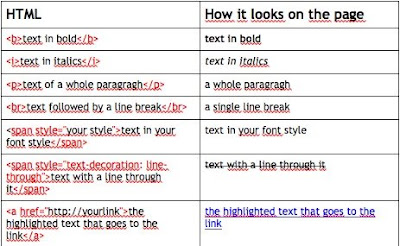
Add the code for tables and you're almost there.

Add the code for tables and you're almost there.
Thursday, 14 May 2009
Getting it up (2) - learning about HTML
Last time (Getting it up (1) – simple ways to start a web presence) we talked about easy ways to get a basic website online. If you want to go beyond basic, you need to learn a bit about html. Writing html documents is in no sense rocket science. But it's a bit like setting off fireworks: nothing to it, but things can go disatrously wrong for no obvious reason.

 In that case, why is it so tricky?
The problem is: when you write, say, a Word document, you know pretty much how it's going to look for anyone who puts it on their screen or prints it out. But an internet server doesn't send a formatted html document: it sends the text with tags saying "this next bit is a heading /paragraph / list / table etc." or "put a border round this picture". Then the software (browser) on the computer of the person who called up your webpage puts it on the screen in the way that the software decides will look nicest. So an html page looks different on a PC, a MAC, a big desktop screen, a "beamer" projector, a laptop, a little netbook computer, a Blackberry, a mobile phone, your next television, Internet Explorer, Firefox, Safari, Opera ... Then people can resize their windows, resize the text in a window, and generally muck up your pages even if they look all right when they first arrive on their screens. And when you've written tidy pages that look nice on all current systems and browsers, somebody issues a new browser that scrambles them.
Things are sorting themselves out a bit. The current approach is to keep html for the structure of the text (headings, paragraphs, lists etc.) and put all the style things (fonts, colours, backgrounds, boxes etc.) is a separate file using a separate system: a "style sheet", which is the "SS" in "CSS" (the "C" is for "cascading", but isn't as cool as it sounds). This system sort of works. Mostly. Ish.
So the thing is, you'll never make web pages of any complexity if you don't understand at least a bit about what's going on. The book above is great for explaining this.
Next: the trouble with browsers, and the programs you can use ( and can't) to help you write html that works. Mostly.
The best introductory book I've found - by miles- is this one:
If you're a teacher, you'll find their way of presenting information somewhere between thought-provoking and inspiring. I did, anyway.
Here's the link to the book at amazon.de: Head First HTML with CSS and XHTML.
And here's the link to amazon.co.uk, where it's a lot cheaper at the moment cos the pound is not very well:  Why do I need to learn about html? And what's CSS?
Why do I need to learn about html? And what's CSS?When you call up a web page, the server at the website sends text to your browser, formatted as html. HTML is text with a few added comments inside pointy brackets. The comments are called "tags" and they look like "<h1>", "<p>", "<i>" etc., to tell the browser to format a bit of text as a main heading, a paragraph, or in italics. The killer tag is the "<a>" one, which marks a bit of text as a hyperlink to another page. Think about how it's changed your life, and agree with me that it's one of the towering achievements of the human intellect, right up there with moveable type and cricket. And it's British. (And hence currently under American control.)
So it's just text with tags, like this:
In that case, why is it so tricky? The problem is: when you write, say, a Word document, you know pretty much how it's going to look for anyone who puts it on their screen or prints it out. But an internet server doesn't send a formatted html document: it sends the text with tags saying "this next bit is a heading /paragraph / list / table etc." or "put a border round this picture". Then the software (browser) on the computer of the person who called up your webpage puts it on the screen in the way that the software decides will look nicest. So an html page looks different on a PC, a MAC, a big desktop screen, a "beamer" projector, a laptop, a little netbook computer, a Blackberry, a mobile phone, your next television, Internet Explorer, Firefox, Safari, Opera ... Then people can resize their windows, resize the text in a window, and generally muck up your pages even if they look all right when they first arrive on their screens. And when you've written tidy pages that look nice on all current systems and browsers, somebody issues a new browser that scrambles them.
Things are sorting themselves out a bit. The current approach is to keep html for the structure of the text (headings, paragraphs, lists etc.) and put all the style things (fonts, colours, backgrounds, boxes etc.) is a separate file using a separate system: a "style sheet", which is the "SS" in "CSS" (the "C" is for "cascading", but isn't as cool as it sounds). This system sort of works. Mostly. Ish.
So the thing is, you'll never make web pages of any complexity if you don't understand at least a bit about what's going on. The book above is great for explaining this.
Next: the trouble with browsers, and the programs you can use ( and can't) to help you write html that works. Mostly.
Webinars for beginners
We already pointed out that Classroom 2.0 (the social networking site for teachers on Ning) provides webinars on a wide range of online applications for teaching. Now Steve Hargadon, the founder of Classroom 2.0, has announced a new Classroom 2.0 webinar series for beginners:
"While our beginner series focus is helping educators new to web technologies learn more about how they can use these tools with their students it will also provide 'takeaways' for the more experienced users. All sessions will be recorded and archived at http://live.classroom20.com."
It kicked off on Wednesday at 8 pm Eastern Standard Time ... or today, Thursday, at 2 am our local German Time. Yawn! Fortunately, the Classroom 2.0 team do a great job of documenting their webinars:
The first session was one of three dedicated to wikis, facilitated by Sue Waters of Edublogs (she's from Perth; her blog is here). For an mp3 recording of the session, the chat log and further information on the series, visit Classroom 2.0 Live!
Visit Classroom 2.0
"While our beginner series focus is helping educators new to web technologies learn more about how they can use these tools with their students it will also provide 'takeaways' for the more experienced users. All sessions will be recorded and archived at http://live.classroom20.com."
It kicked off on Wednesday at 8 pm Eastern Standard Time ... or today, Thursday, at 2 am our local German Time. Yawn! Fortunately, the Classroom 2.0 team do a great job of documenting their webinars:
The first session was one of three dedicated to wikis, facilitated by Sue Waters of Edublogs (she's from Perth; her blog is here). For an mp3 recording of the session, the chat log and further information on the series, visit Classroom 2.0 Live!
Visit Classroom 2.0
Tuesday, 12 May 2009
Wordia
Wordia is a free online video dictionary where "real people" define words. You can watch - or make and contribute - videos, which the editors go through to select to provide a "word of the day". The videos are uploaded through YouTube, but cannot be embedded the way YouTube videos can, or downloaded through www.savevid.com. But if you do a search on YouTube with the name and the word, you'll find the video you want. I really enjoyed watching Scotswoman Jenny Colgan defining "expatriate". Gin at 10 in the morning?
The site claims:
"We're redefining the dictionary.
1. Think of a word that has a special meaning for you.
2. Record a video defining the word
3. Upload your video."
I might want to define "Weißwurst" ;)
The team running this project collaborates with HarperCollins, The National Literacy Trust and The Open University, among others.
Found through Nik Peachey's Wallwisher wall, "Web 2.0 Tools for teachers" - a must-see collection where you can add your own favorites.
The site claims:
"We're redefining the dictionary.
1. Think of a word that has a special meaning for you.
2. Record a video defining the word
3. Upload your video."
I might want to define "Weißwurst" ;)
The team running this project collaborates with HarperCollins, The National Literacy Trust and The Open University, among others.
Found through Nik Peachey's Wallwisher wall, "Web 2.0 Tools for teachers" - a must-see collection where you can add your own favorites.
Monday, 11 May 2009
Bitstrips
One of several websites that allow you to make comics with your class is www.bitstrips.com. What I like about this one is that you can personalize the character to look a little like yourself or some famous person. Then you can change the expression, posture and gestures in each frame. With low-level learners you could use these little avatars to practice describing people and their expressions. And then, of course, you can create little stories. It gets a lot more fun when everyone in your class has created a comic avatar and then invite each other as "friends" (this is social networking, after all) and can then use those "friends'" avatars in their Bitstrips. Bitstrips can be embedded in a blog or shared by email.
Subscribe to:
Posts (Atom)